Using the IDE
The task editor is where you write a task, configure how it runs, run it, and ship it. Open it with New Task on the Tasks page, or by opening an existing task.
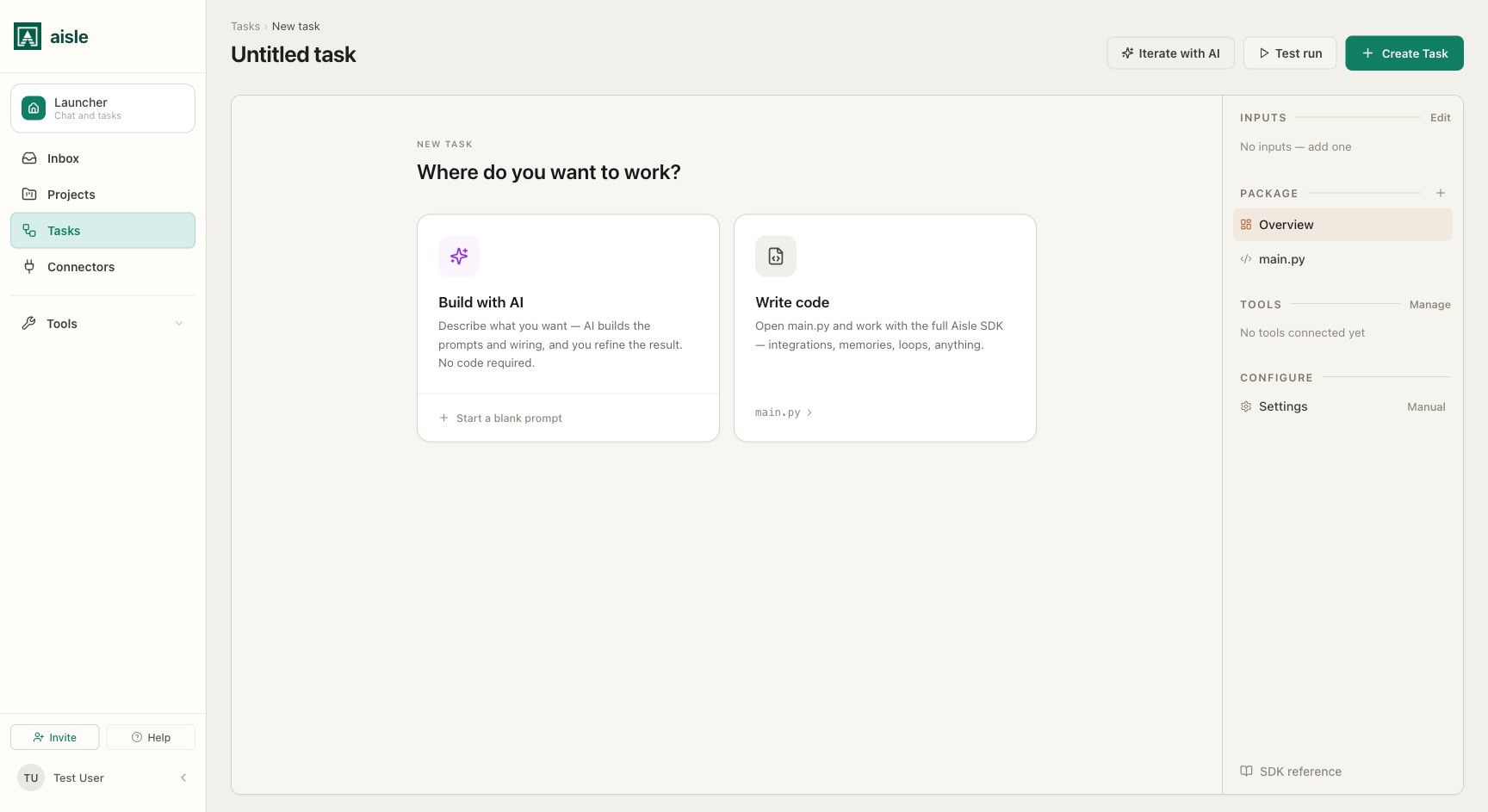
Two ways to start
When you create a task you choose how to build it:
- Build with AI — describe what you want and the builder writes the code, prompts, and wiring. You refine the result in place.
- Write code — open
main.pyand work against the fullaisleSDK yourself.
Either way you land in the same editor, and you can switch between typing code and asking the builder to change it at any point.
The editor
main.py is the entry point. It runs top to bottom on Aisle's managed runtime, with the aisle SDK already injected — no imports, no configuration.
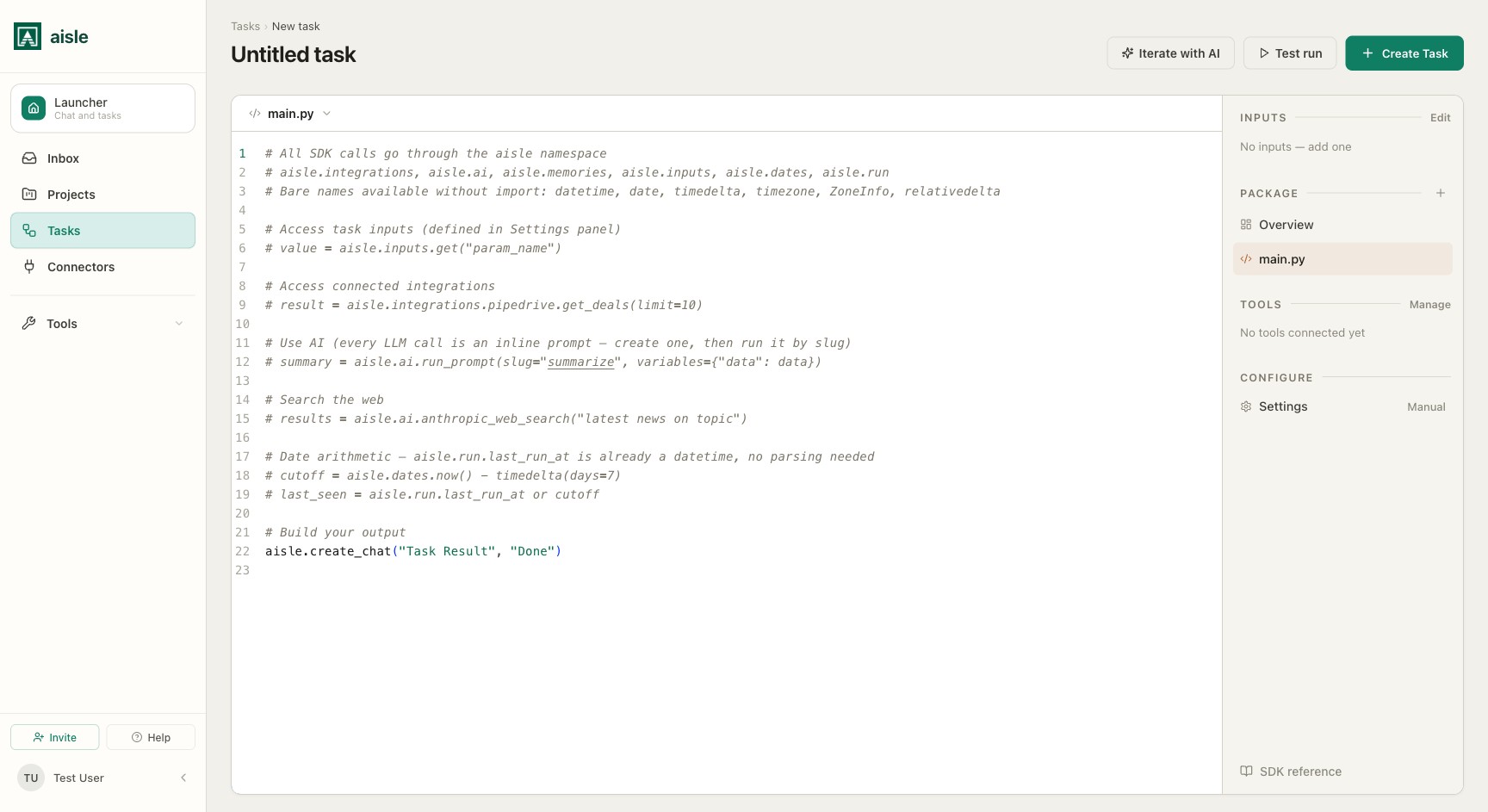
Everything hangs off the aisle object:
aisle.inputs— the typed values passed into a runaisle.integrations— connected services, e.g.aisle.integrations.slack.create_message(...)aisle.ai— run prompts and use provider web toolsaisle.memories— read and write knowledge foldersaisle.run— run context, e.g.aisle.run.last_run_at, the trigger, the useraisle.dates,aisle.files,aisle.http, and more
A few names are available without an import: datetime, date, timedelta, timezone, ZoneInfo, relativedelta.
The SDK reference link at the bottom of the panel opens the full API in SDK Reference without leaving the editor.
The side panel
The panel on the right is the rest of the task:
- Inputs — the typed values a run receives. Declared here, they render as a form when someone runs the task, and you read them in code with
aisle.inputs.get(...). See Deployment. - Package — the files in the task. Every task has an Overview and
main.py. The + (Add file, prompt, or test) menu adds one of three things: a New inline prompt, a Prompt from library, or a New test file. - Tools — the integrations, memory, and prompts the task is allowed to use. See Assigning tools.
- Settings — the task's name, trigger, description, and run configuration (expected runtime, concurrency, retries). See Settings below.
Settings
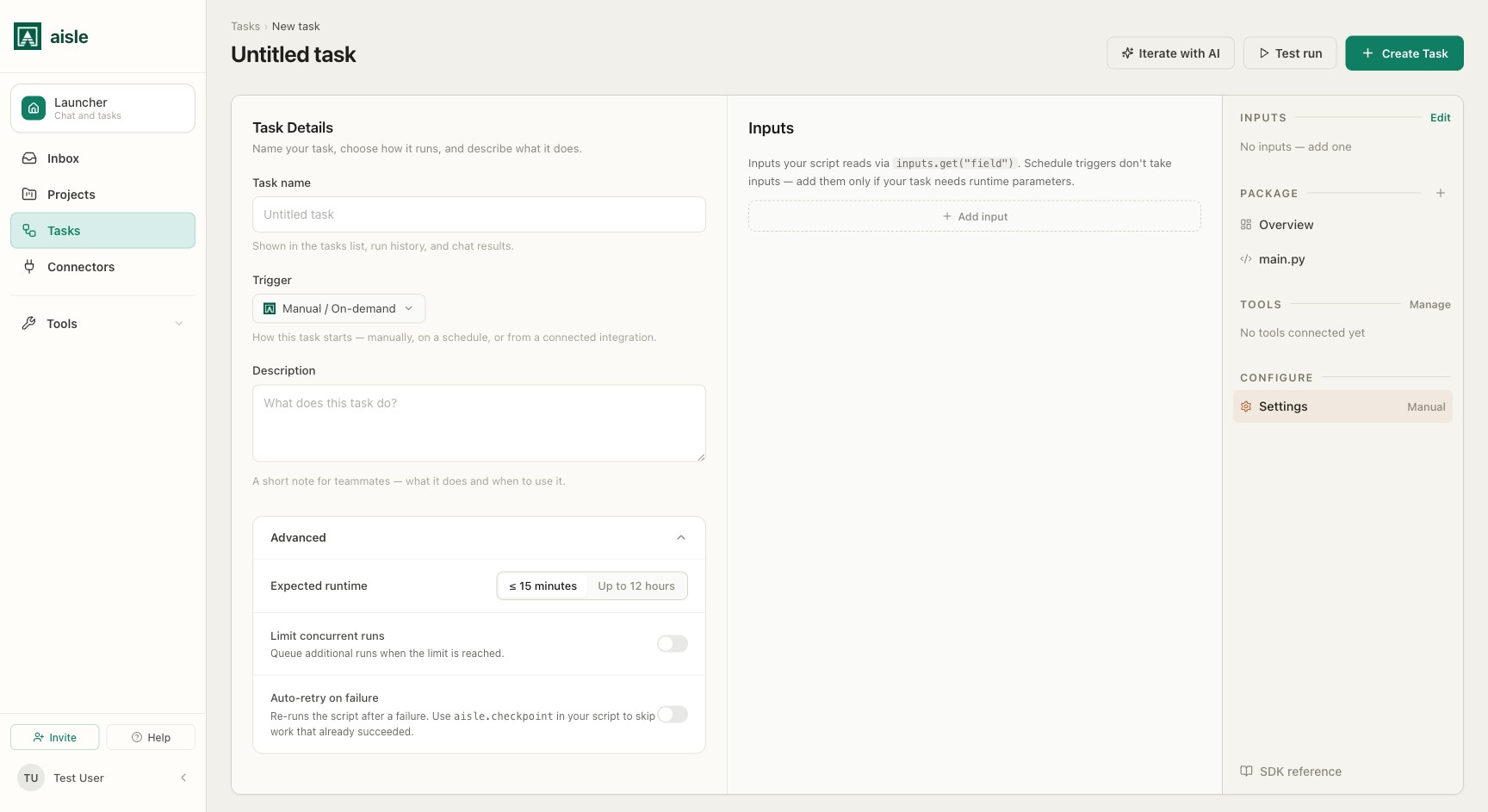
The Settings tab — next to Inputs, Package, and Tools in the side panel — holds the task's name, how it runs, and its runtime and reliability controls. You can also rename a task directly with the Rename task button on the task detail page.
Task Details
- Task name — shown in the tasks list, run history, and chat results.
- Trigger — how the task starts: manually, on a schedule, or from a connected integration. Picking a trigger can add a Trigger settings field below it (a schedule's cron and timezone, a connected event's filters). Triggers and entry points are covered in Deploying & sharing.
- Description — a short note for teammates: what the task does and when to use it.
Advanced
The Advanced section holds three runtime controls. They are stored on the task and applied to every run.
Expected runtime sets how long a single run may take before Aisle stops it. There are two presets:
- ≤ 15 minutes — the run completes in a single invocation. Use this for tasks that finish quickly.
- Up to 12 hours — the run may take much longer. Use this for long jobs: large fan-outs, big file transfers, work that waits on a slow external system.
A run that exceeds its expected runtime is stopped and recorded as timed out. For long work, pair Up to 12 hours with checkpoints so an auto-retry resumes from where it stopped rather than starting over — see Concurrency and state.
Limit concurrent runs is off by default: any number of runs can execute at once. Turn it on to cap how many runs of this task run simultaneously, and set Max concurrent runs (1–100). When the cap is reached, additional triggers queue and start as running ones finish. Use it when a task writes to a rate-limited service and overlapping runs would overrun it — a schedule that can fire again before the previous run is done, or a webhook that arrives in bursts.
Auto-retry on failure is off by default. Turn it on to re-run the script automatically after a failure, and set Max retries (1–100) and Backoff (seconds) (0–3600). An auto-retry re-runs the whole script from the top; to keep it from repeating work that already succeeded, use aisle.checkpoint in your code so finished steps are skipped on the retry — see Concurrency and state.
Running while you build
- Test run runs the current, unsaved draft. The run is flagged as a test —
aisle.run.is_testisTruein your code — and results stream back in the editor, so you can see output, logs, and errors without shipping anything. - Iterate with AI hands the current code to the builder along with a description of the change you want. It edits the code in place, and reads the results of a test run to correct its own mistakes.
Shipping
Create Task saves the task and puts it live on the managed runtime — there is no separate deploy step. From there you give it a trigger and share it. See Deploying & sharing.