Projects
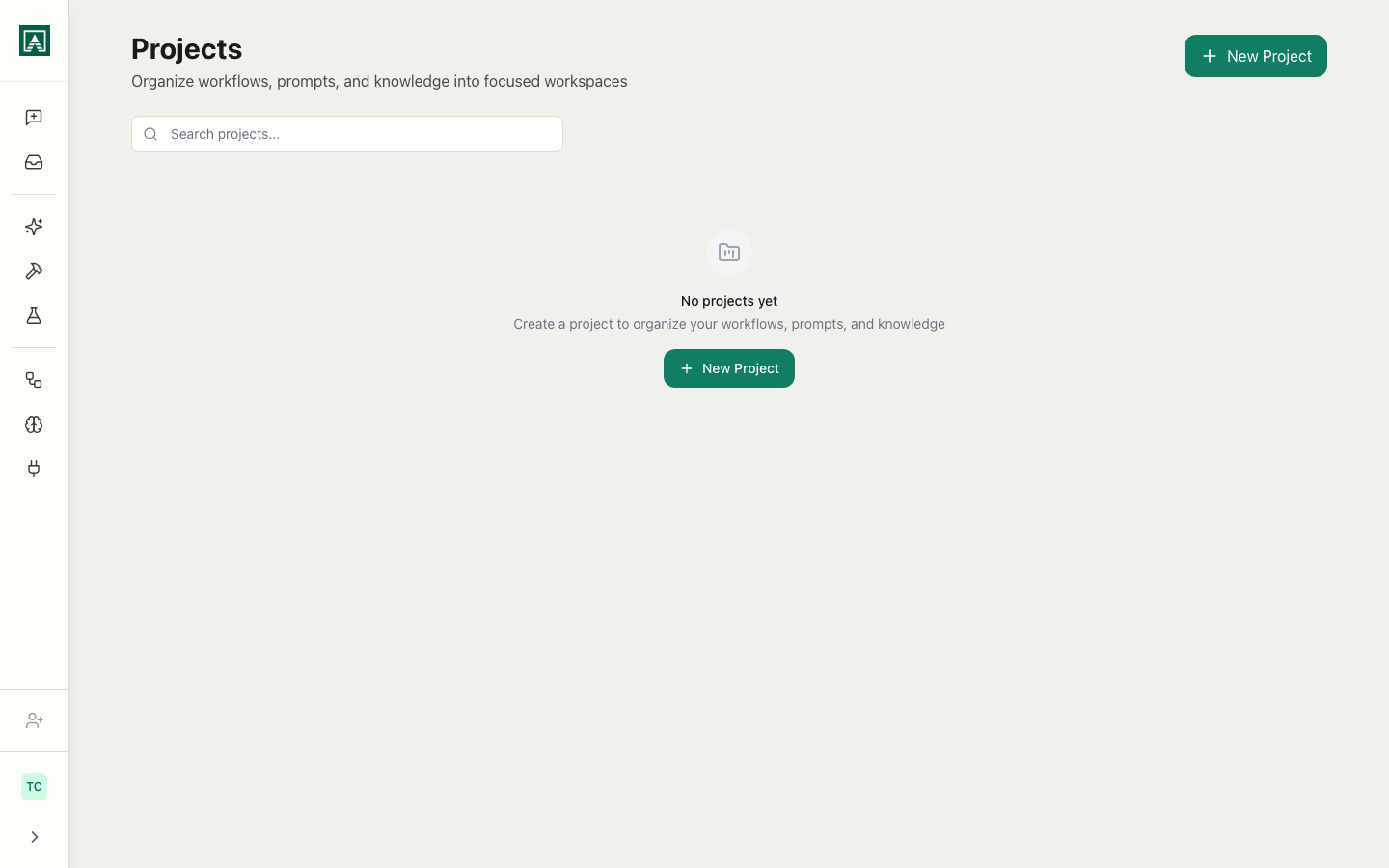
A Project is a workspace where the context, tools, and knowledge needed for a specific type of work are defined once and available in every conversation.
Think of it as a colleague who already knows the background. You don't explain the situation each time - you just describe what you need done.
What a project contains
Instructions - a system message that applies to every conversation in the project. The model treats these as standing directives. "Always check the CRM before making recommendations." "Follow our tone guide." "When asked to research a company, use the standard research workflow and save findings."
Tools - prompts, workflows, scripts, and MCP connectors assigned to the project. Available to the model at all times via @ mention, or automatically when the model determines they're relevant.
Knowledge bases - memory folders assigned as reference (the model draws on them automatically) or output (workflow results get saved there). A project with an output database builds institutional knowledge over time.
Default model - the model and settings used in every project conversation.
Three ways to think about Projects
As a team workspace. Set the project to Shared and your whole team works with the same tools, instructions, and knowledge - consistently, without each person needing to configure anything. See Using Projects.
As an agent workspace. Assign the right tools and write a precise system message, then describe tasks and let the model execute - including background runs that complete while you're doing something else. See Projects as an Agent Workspace.
As context management. Create different projects for different purposes: customer support, competitive research, engineering, content. Each has its own instructions, tools, and knowledge. Switching projects means the model immediately operates in a completely different context.
Creating a project
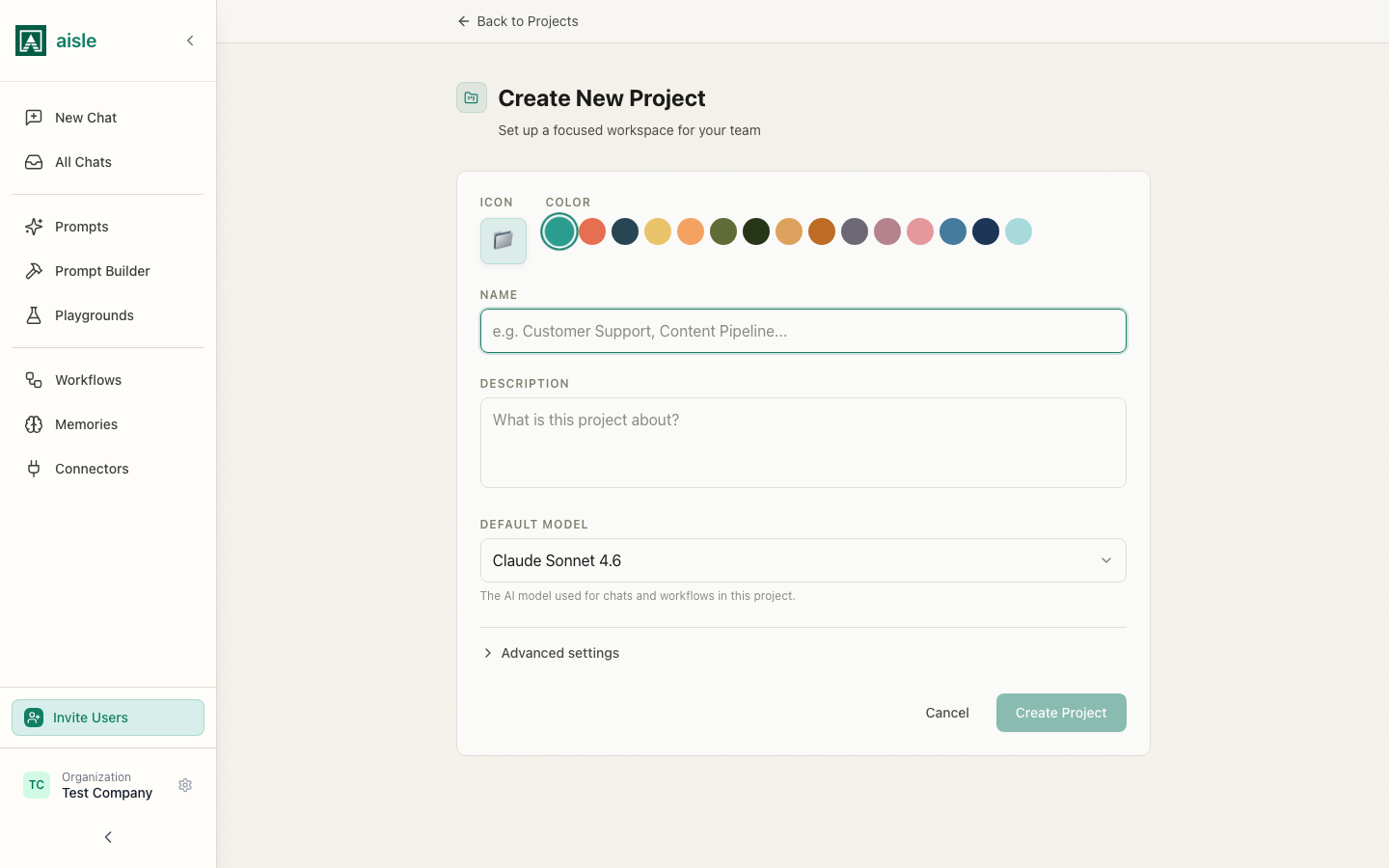
Navigate to Projects in the sidebar and click New Project.
Fill in:
- Name - what the team will call it
- Default model - the model used for conversations in this project
- System message (under Advanced Settings) - the instructions that apply to every conversation
After creation, assign tools and knowledge bases from the project home page using the Manage buttons.
The project home
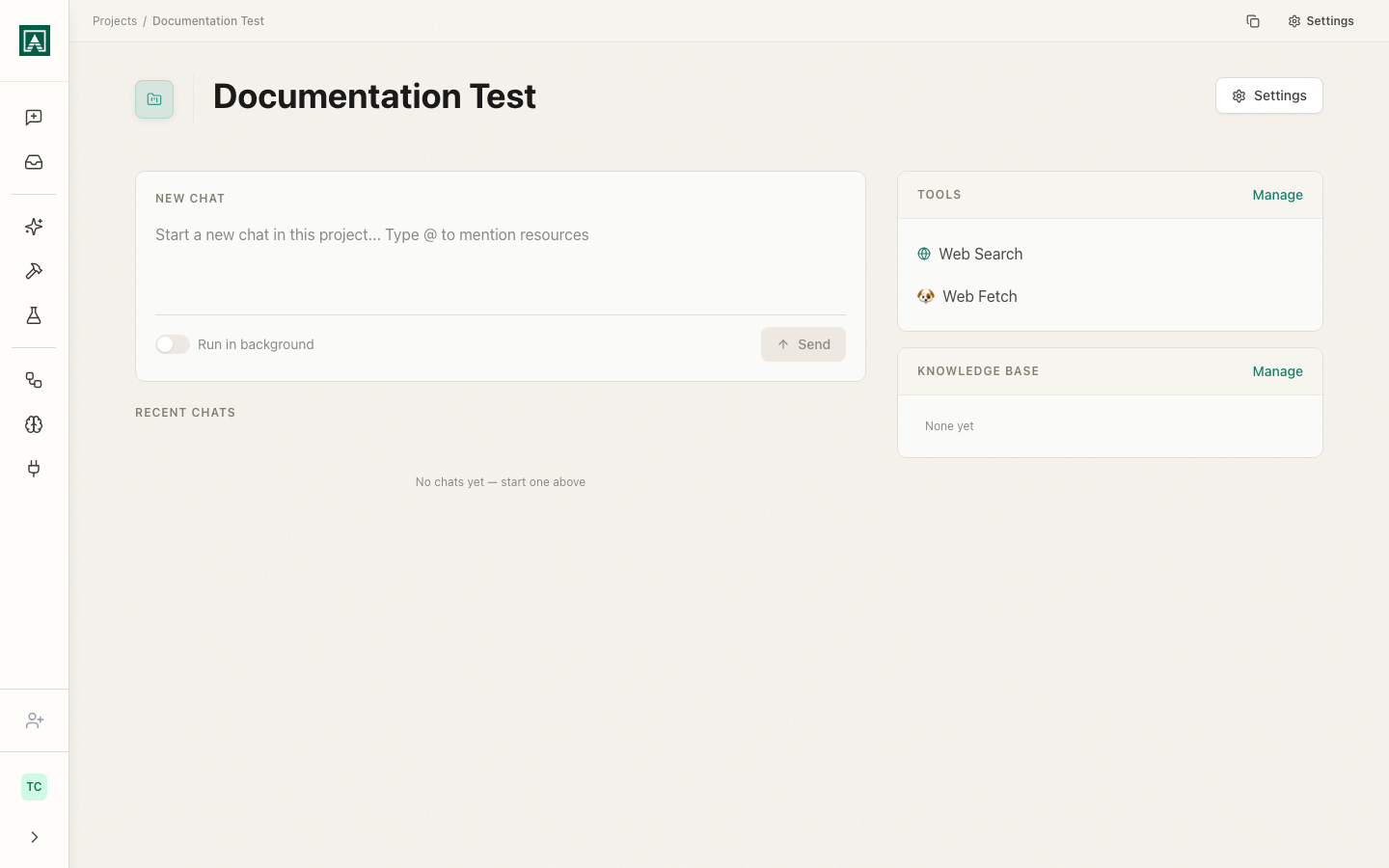
The project home shows the chat input, recent conversations, and the assigned tools and knowledge bases.
Type a message and send to start a conversation. Toggle Run in background to queue the task asynchronously - the result appears when it's done, without you needing to watch.
Project settings
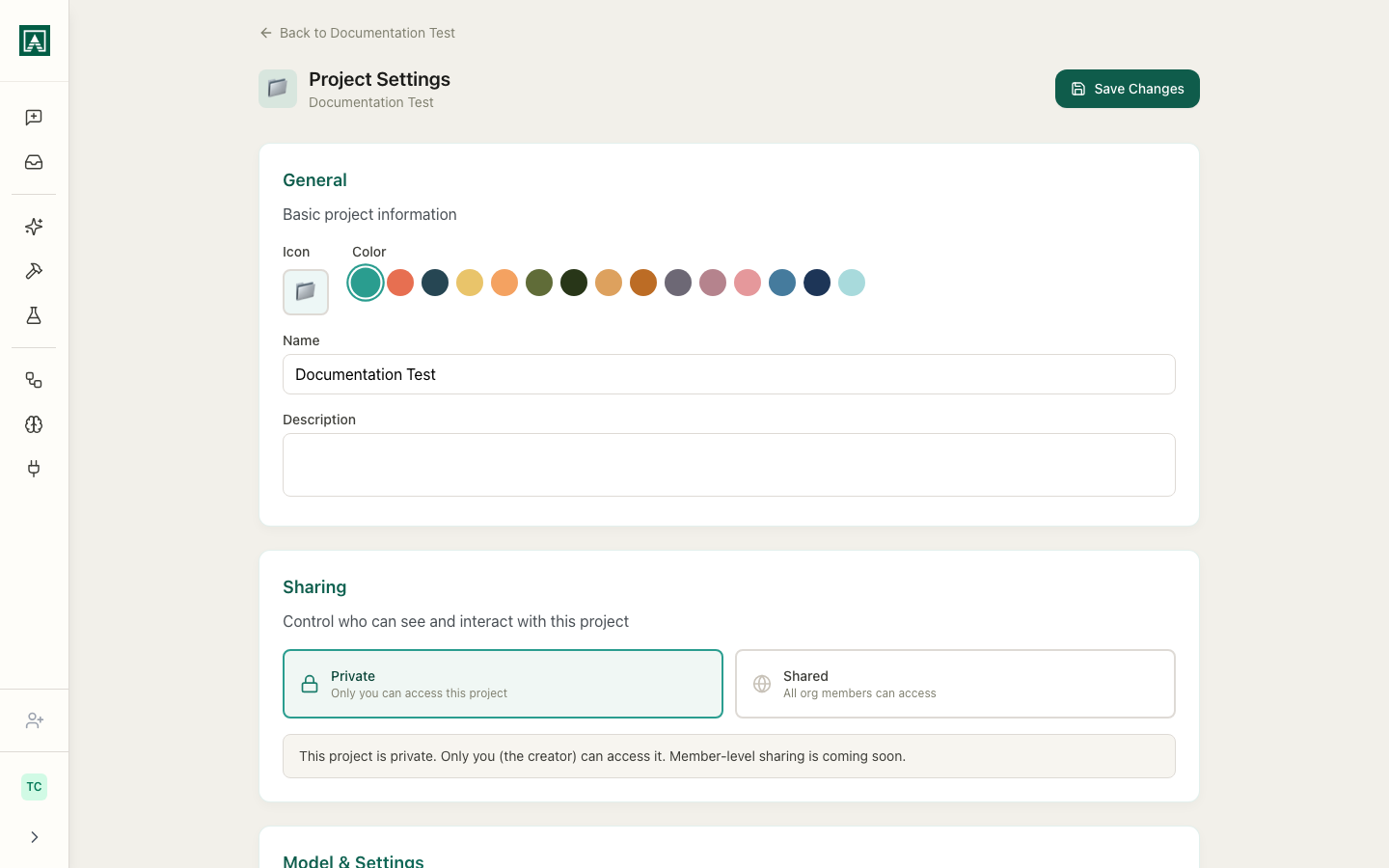
Open settings from the project home to update instructions, change the default model, or switch between Private (only you) and Shared (all org members).