Memories
A memory folder is durable, structured storage your AI work reads and writes. Each folder holds records — a name, markdown content, and optional metadata — and every record persists between runs. Projects, Tasks, prompts, chat, and external tools all read and write the same folders.
Memories are global to your organization. You create a folder once, add records to it or point Tasks at it, and reuse it everywhere.
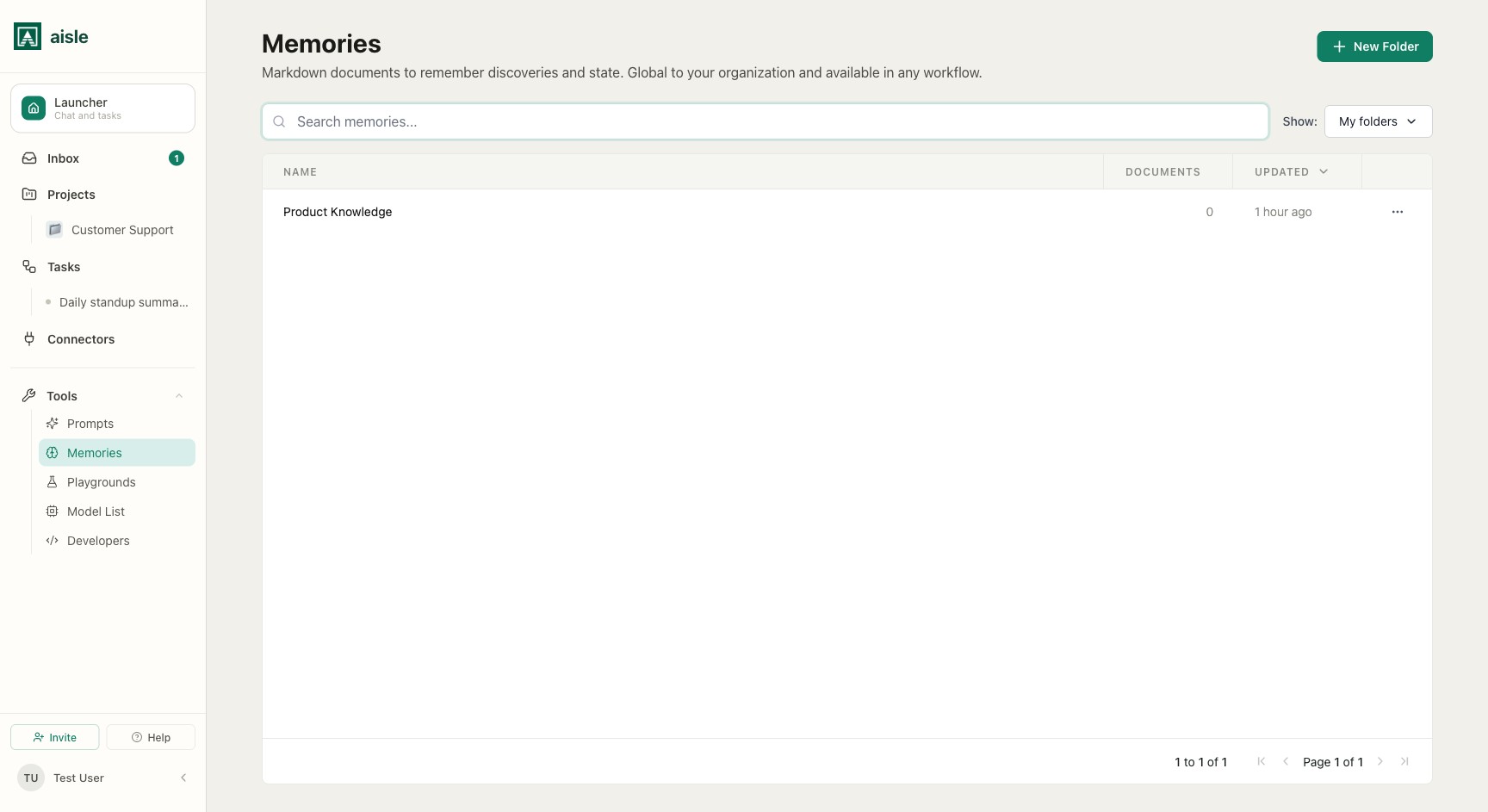
Folders and records
A folder is the unit you create, share, and attach to Projects, prompts, and MCP. A record is a single entry inside a folder. In the folder view, records are shown as Documents.
Each record has:
- A name — how you look it up by key.
- Content — markdown, or text extracted from an uploaded file.
- Metadata — optional key/value pairs you define, used for exact-match filtering.
- A status —
activeorarchived. Archived records are excluded from search by default.
Open Memories in the sidebar to see your folders. Folders can be nested — a folder can hold subfolders as well as records. Inside a folder's Documents view, click New Subfolder to create a subfolder within it.
Creating a folder
Click New Folder, give it a name, and create it. The folder starts empty and private to you until you share it.
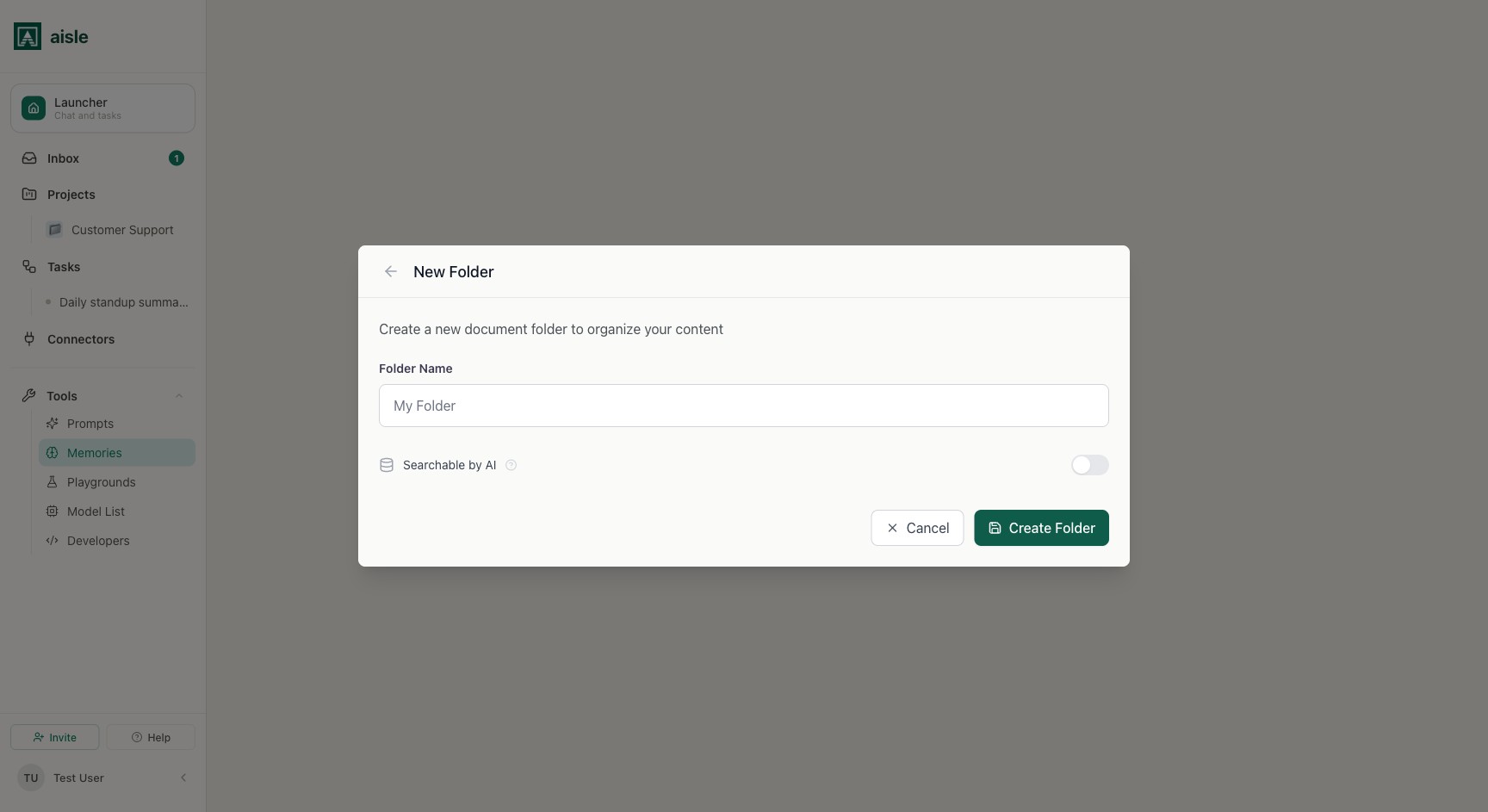
Adding records
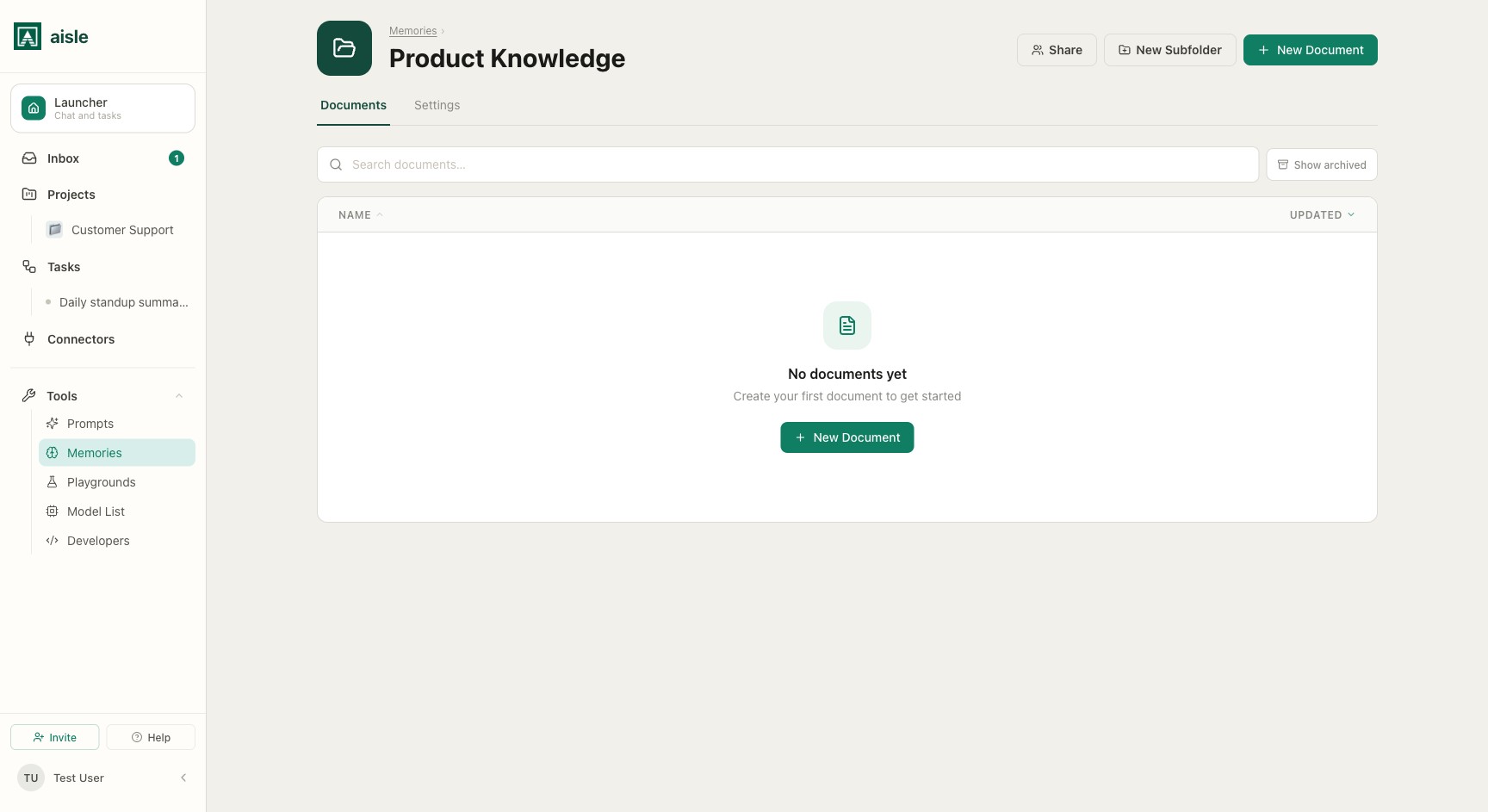
Open a folder and click New Document. You choose how to add content:
- Write a Document — enter a name and write markdown content directly. Add metadata key/value pairs and an optional vector description while you write.
- Upload Files — drop in one or more PDFs, images, or other files. Aisle extracts the text and stores it as the record's content; the original file is preserved. Each file becomes its own record.
Tasks also create and update records in code through aisle.memories — this is how a folder accumulates content over time without anyone opening the UI. See Reading and writing from a Task.
Archived records are hidden from the Documents view by default. Turn on Show archived to reveal them alongside active records.
Making a folder searchable
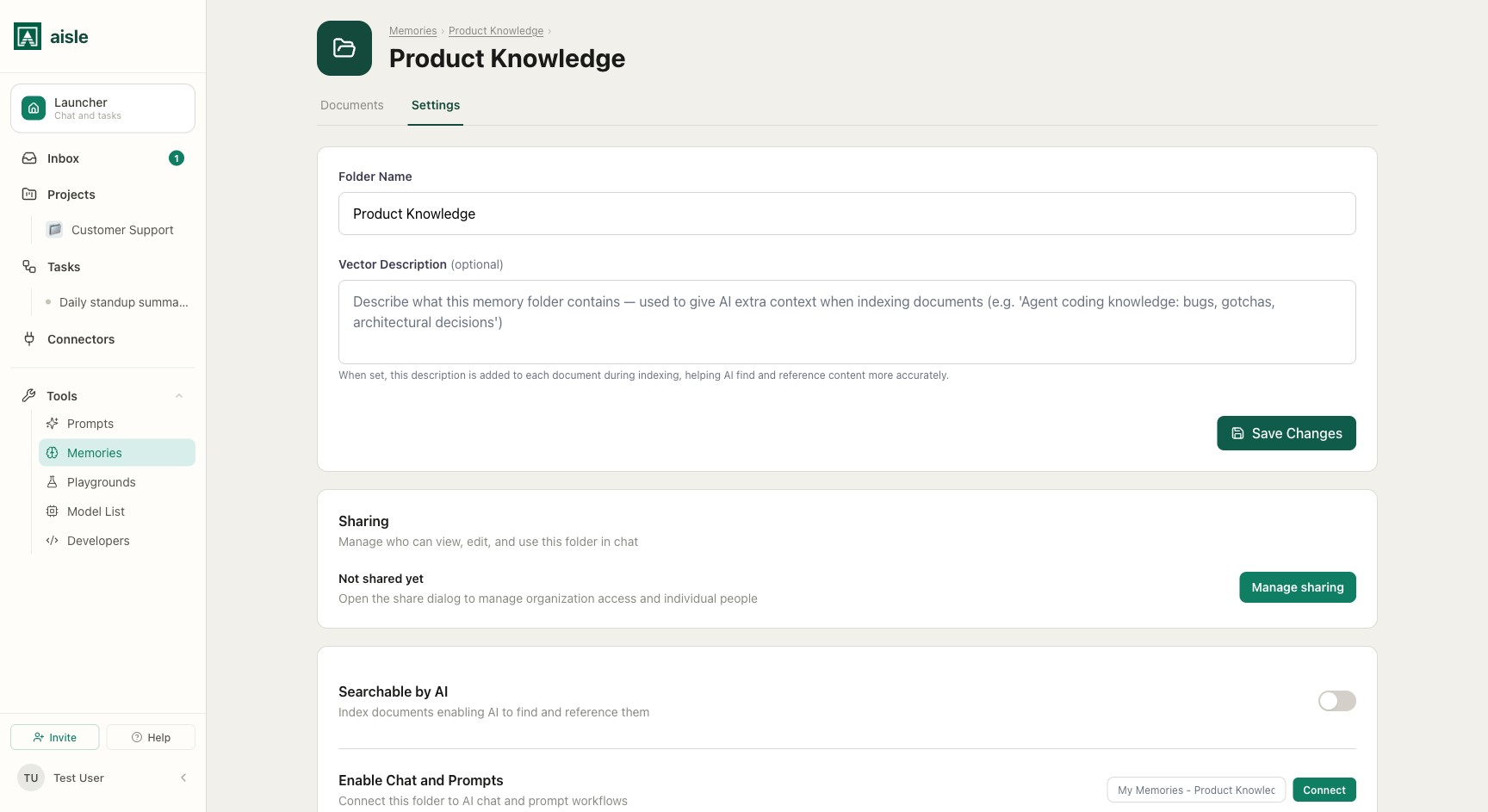
By default a folder is plain storage — you can list records and look them up by name or metadata. Turning a folder into a searchable knowledge base takes one setting.
Open the folder's Settings and enable Searchable by AI. Aisle then indexes every record so it can be retrieved by meaning:
- New records are indexed after they are created or updated.
- Records added before you enabled the setting are indexed retroactively.
- Indexing runs in the background. Each record shows a status — pending, processing, completed, or failed — and only completed records are returned by semantic search.
Under the hood, indexing does not embed each record as one blob. Aisle extracts discrete facts — propositions — from the content and indexes each one separately, so a search matches the specific fact rather than a whole document. You can inspect the propositions for any record, and use Test Retrieval in Settings to preview what a query returns.
This is what turns a folder into a RAG (retrieval-augmented generation) knowledge base. For an end-to-end walkthrough — adding documents, waiting for indexing, and querying from a Project and a Task — see Building a RAG Knowledge Base.
Reading records back
There are four ways to retrieve records, matched to what you know about what you want.
| Method | You want | SDK |
|---|---|---|
| By key | A specific record, by name | aisle.memories.get(name) |
| By metadata | Records where fields match exactly | aisle.memories.query(metadata={...}) |
| By keyword | Records whose text contains a term | aisle.memories.search(query) |
| By meaning | Records conceptually related to a query | aisle.memories.vector_search(query) |
Metadata filters are exact and AND-combined — query(metadata={"status": "active", "category": "billing"}) returns only records matching both. Use consistent field names across Tasks; a field called priority in one and importance in another cannot be queried together.
Vector search returns the matching propositions, each with a similarity score, rather than whole documents. It only works on folders with Searchable by AI enabled. Raise the score threshold to return only closer matches; lower it to return more.
Reading and writing from a Task
Inside a Task, everything hangs off aisle.memories. Select the folder in the task's Tools panel and reference it by alias:
# Retrieve grounded context by meaning
hits = aisle.memories.vector_search(
    query="renewal risks for Acme",
    folder="Customer Research",
    limit=5,
)

# Store a new record
aisle.memories.store(
    name="Acme — Q3 review",
    content=summary,
    metadata={"account": "acme", "status": "active"},
    folder="Customer Research",
)
store accepts either content= (inline markdown) or file= (a blob from aisle.files or a connector download). get, query, search, update, archive, unarchive, list_all, and get_propositions round out the API. See the SDK Reference for full signatures.
Agentic memory
Because records persist between runs, a folder can hold a Task's own state — not just reference material. A scheduled or event-driven Task reads where it left off at the start of a run and writes an updated record at the end. Over many runs, that state compounds: a monitoring Task remembers what it has already seen, a research Task builds on prior findings, an agent recalls past decisions instead of starting cold each time.
# Read prior state, do work, write it back
state = aisle.memories.get("watch-state", folder="Ops")
new_items = fetch_since(state["content"])

if new_items:
    aisle.memories.update(
        state["id"],
        content=render(new_items),
        folder="Ops",
    )
This is the same folder a person can open and read in the UI, which makes agent state auditable — you can see exactly what the Task believes and correct it by hand.
Who reads the same folders
A folder is one store with several front doors. The same records are reachable from:
- Projects — attach a folder as knowledge and the model searches it automatically during project chats, grounding answers in its content. See Projects.
- Tasks — read and write explicitly in Python through
aisle.memories, as above. - Chat and prompts — in the folder's Settings, turn on Enable Chat and Prompts and run the Connect flow: name the connection (it defaults to
My Memories – <folder name>) and click Connect. The folder is then available as a knowledge source in chat and prompt runs. - External tools — turn on Enable External MCP Servers and click Add Connection to expose the folder over MCP, so Claude Code, Cursor, or any MCP client can read and write it from outside Aisle. See Memories MCP Server.
These are independent. A folder can be a Project knowledge base, a Task's state store, and an external MCP server at the same time, or just one of them.
Metadata, sharing, and history
Metadata — attach key/value pairs to any record (status: active, customer_id: 12345) and filter on them with query. Filters are exact matches, AND-combined.
Sharing — records are private to the folder owner by default. Use Share on a folder to grant the organization or specific members View or Edit access. Sharing is at the folder level; individual records are not shared separately.
Version history — every change to a record is tracked. You can view earlier versions, see what changed and when, and restore a prior version if a Task or a person writes bad data.