Building Prompts
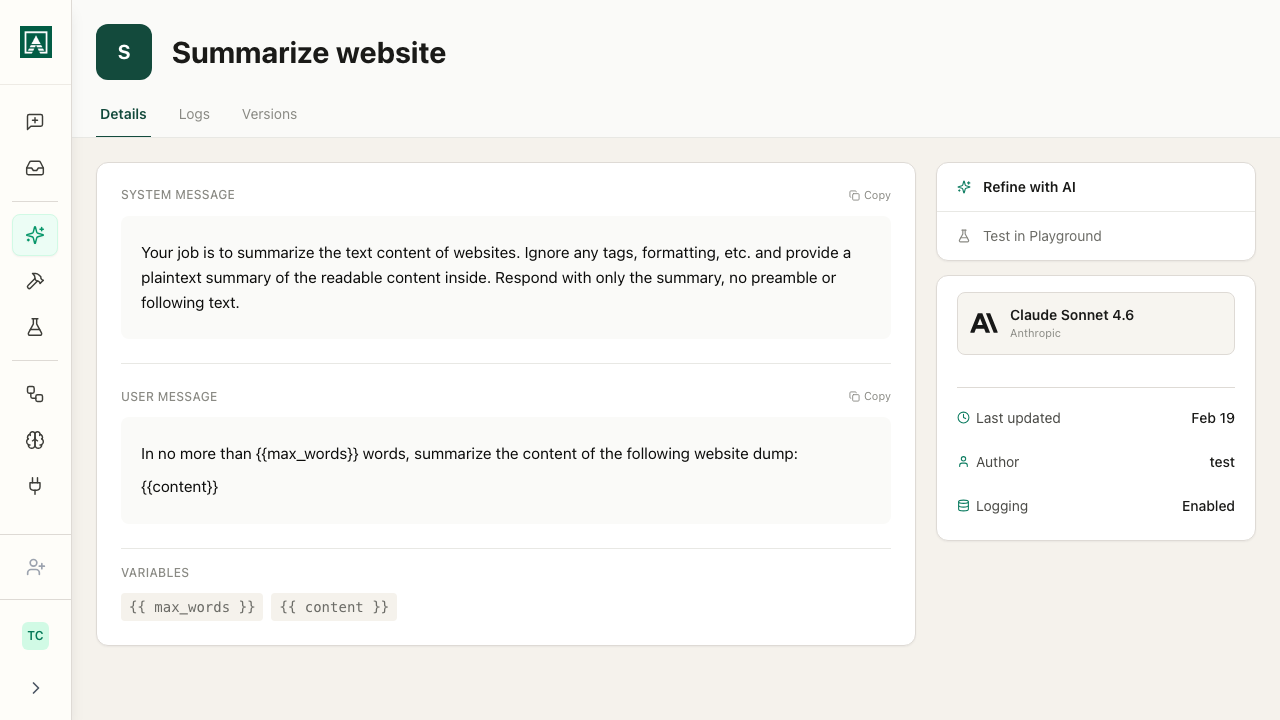
How to create and configure prompts in Aisle.
Creating a Prompt
Navigate to the Prompts page and click New Prompt.
You'll configure several key elements:
Name and Description
Name - What your team will see when searching for this prompt. "Article Summarizer" is better than "Test_Prompt_3" because in three months when someone needs to summarize an article, they'll actually find this.
Description - Helps you remember what this does. More importantly, if you share this prompt in chat, your teammates see this description when deciding whether to use it. Write something useful: "Condenses long articles into two-sentence summaries" tells someone exactly what they're getting.
Icon - Purely visual, but when you've got twenty prompts in your library, icons help you scan faster.
Selecting Your Model
Different AI models have different strengths:
- Some prioritize speed for quick responses
- Others excel at complex reasoning
- Some are better for creative tasks
- Others for structured data analysis
See the full list at app.aisle.sh/models.
Not sure which to use? Start with a general-purpose model such as a current Claude or GPT model. You can always change this later (more on that in a moment).
Writing Instructions
User Message - This is where the actual prompting happens. The instruction that runs every single time someone uses this prompt.
Start simple:
You are going to receive an article. I want you to summarize it to only two sentences.
This works, but it's minimal. In real use, you'd add more detail:
- What should those two sentences focus on? Main argument? Key findings?
- Should the tone be formal or casual?
- Any specific format requirements?
The more specific you are about what you want, the more consistent your outputs will be.
System Message (optional) - Sets the overall behavior or role for the model. This is optional but useful for certain cases.
The system message is broader context ("you are a technical documentation expert" or "always respond in valid JSON format"), while the user message is the specific task ("summarize this article").
For a simple summarizer, you might not need this. But if you're building something like a customer support prompt where tone and format matter across many different questions, the system message is where you'd set that baseline.
Making Prompts Dynamic with Variables
Variables make prompts reusable. Without variables, you'd need to edit the prompt every time you want to process different input.
Creating Variables
Click "Add Variable" and rename it to something meaningful. For an article summarizer, article makes sense.
Reference it in your user message with double curly braces:
The article to process: {{article}}
Now when someone runs this prompt:
- In chat - They see an input field labeled "article"
- Via API - They pass
{"article": "..."}in their request - In Tasks or Projects - The caller passes the variable values when invoking the prompt
The prompt stays consistent, the variable changes.
Multiple Variables
You can have multiple variables:
Analyze this {{feedback_type}} from {{customer_segment}} focusing on {{focus_area}}:

{{feedback_content}}
Now your single prompt handles any type of feedback analysis. Sales team uses it for call summaries, support team for ticket analysis, product team for feature requests.
Model Configuration
Model Settings
Temperature - Controls output variability. Lower values (0.0–0.3) produce more consistent, predictable outputs - good for extraction and classification. Higher values (0.7–1.0) produce more varied outputs - good for brainstorming and writing. Temperature is model-conditional - it is hidden on some reasoning models, such as Claude Opus 5.
Max Tokens - A slider that sets the maximum response length in tokens (roughly one token per word fragment).
Some models expose additional settings that only appear when that model is selected:
Effort (for example, High) - Controls how much compute the model uses for its internal reasoning step before responding. Higher effort produces more considered responses for complex tasks but takes longer. This is not limited to GPT-5 or other OpenAI models - an Effort control also appears on Claude models.
Thinking - A switch that enables an extended reasoning trace that appears before the final response. Useful for complex analysis or multi-step problems where seeing the reasoning is valuable.
Enabling Tools
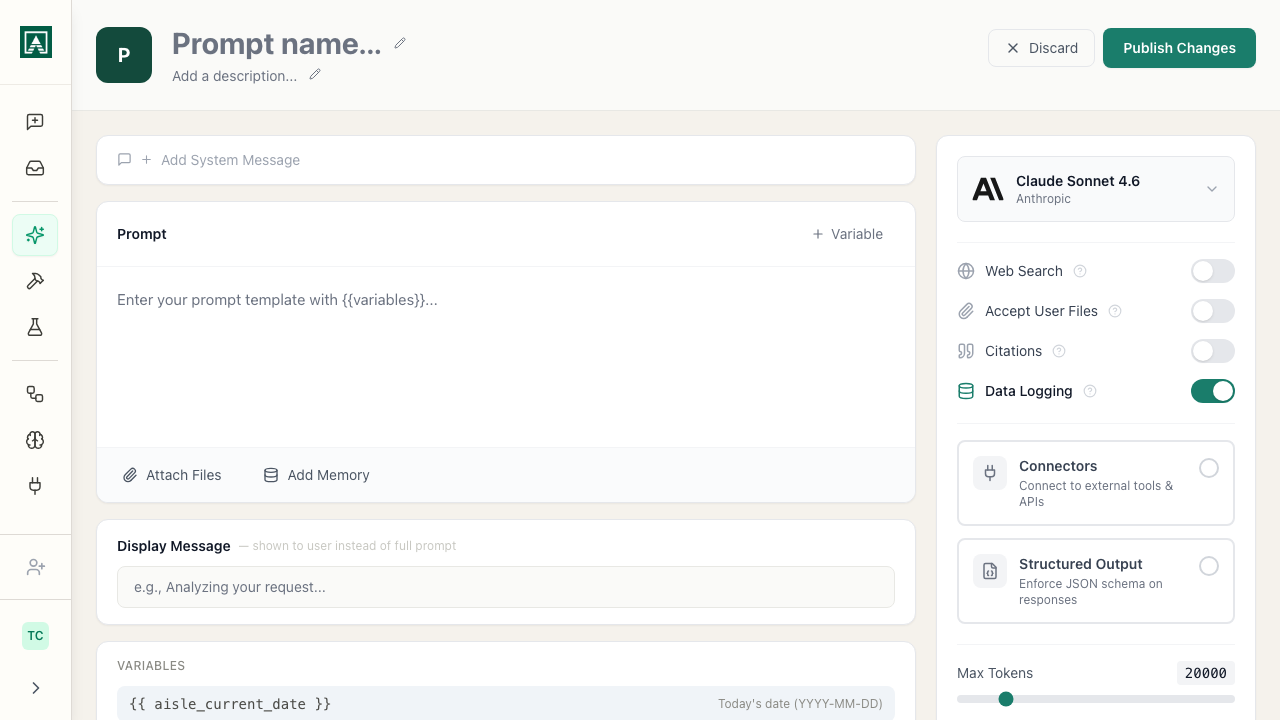
Depending on the model, you can enable various tools. Each toggle has a More info popover that explains what it does.
Web Search - Lets the model pull current information from the internet. For an article summarizer, you don't need this because you're providing the article. But for a prompt that answers questions about recent events, you'd turn this on.
Web Fetch - A distinct toggle from Web Search. It lets the model retrieve the contents of a specific URL. Web Search discovers pages; Web Fetch reads the contents of a page.
Accept User Files - Determines whether users can attach files when they run the prompt. Maybe your article summarizer should accept PDFs. Turn this on, and users can upload a PDF article instead of pasting text.
Citations - When enabled, the model references which parts of your attached files or memories it drew on when generating a response.
Data Logging - when enabled, the inputs and outputs of every run are recorded and viewable in the prompt's Logs tab. Disable this for prompts that process sensitive information - when off, logs still record metadata (timestamp, model, token count) but not the actual content. See Logs.
X Search - Lets the model search X (Twitter) posts via the xAI API. Only appears on supported models - for example, it does not appear on Claude Opus 5.
Connectors - Attach MCP servers to this prompt. When a connector is attached, the model can call its tools during every run of the prompt - querying a database, looking up a record, calling an external API. Connectors are set up on the Connectors page and then selectable here.
Attaching Files and Memories
Attach Files - Give the model permanent context available every time the prompt runs.
Example: You're building a prompt that answers questions about your product. Attach your product documentation as a file here. Now every time someone asks a question, the model has access to that documentation without you needing to paste it into every single request.
Attach Memories - Load markdown files from your memories into any prompt. Think of memories as easy markdown storage for AI. You might have a memory containing your company's style guide, product specs, or terminology. Attach it here, and it's available every time the prompt runs.
Files and memories attached here are permanent context included in every run. Variables change with each use.
Structured Output
When enabled, the model returns a JSON object matching a schema you define rather than free-form text. Every response fits the exact shape you specify - no parsing, no variation.
This is most useful when calling prompts via API or from a Task where the output feeds into another system that expects a specific format.
When you enable the Structured Output card, it expands to a Builder / Raw JSON toggle. You can define your schema either way.
Builder - Build the schema visually. Click Add Property to add a field. Each property row has a name field, a type dropdown with options String, Number, Integer, Boolean, Null, Array, and Object, and a required ("req") toggle for marking whether the field must always be present. A character counter (for example, "165/5,000 characters") shows how much of the schema budget you have used.
Raw JSON - Type or paste the JSON schema directly. Define your schema as a JSON object with field names and types:
{
  "summary": "string",
  "key_points": ["string"],
  "sentiment": "positive|negative|neutral"
}
Every response will return exactly that structure.
Not all models support structured output. The option only appears when you have selected a compatible model. If you switch to a model that does not support it, the setting is ignored.
Built-in variables
Aisle provides one built-in variable available in any prompt without configuration:
{{ aisle_current_date }} - inserts the current date at runtime. Use it when the prompt needs to be date-aware without requiring the user to enter a date manually.
Display Message
When someone runs your prompt in chat, they see the user message by default. If your user message is three paragraphs of detailed instructions, the chat gets cluttered fast.
The display message lets you show something cleaner:
Summarize this article
That's what appears in the chat. The model still receives your full detailed user message behind the scenes, but your chat stays readable.
Model Switching
You can change the model on any prompt at any time without affecting anything else.
Simply select a different model from the dropdown. Your instructions, variables, sharing settings, and usage history all remain intact.
This means you can continuously upgrade your AI capabilities as new models become available, without the traditional overhead of migration projects.
Testing Your Prompt
Before sharing with your team, test it:
- Fill in sample variable values
- Run the prompt
- Check the output
- Adjust instructions if needed
- Test again
Use realistic test data - Don't test with "test test test." Use actual examples of what the prompt will process in production.
Try edge cases - What happens with very short input? Very long input? Unusual formats?
Test different variables - If your prompt has multiple variables, try different combinations.
Every save creates a new version. Rolling back, comparing revisions, and pinning a version to an API deployment are covered in Deploying Prompts.