Deploying, Versions & Logs
Once a prompt works, this is where you ship it: control who can use it, expose an API endpoint, manage versions, and review the log of every run.
Access Controls
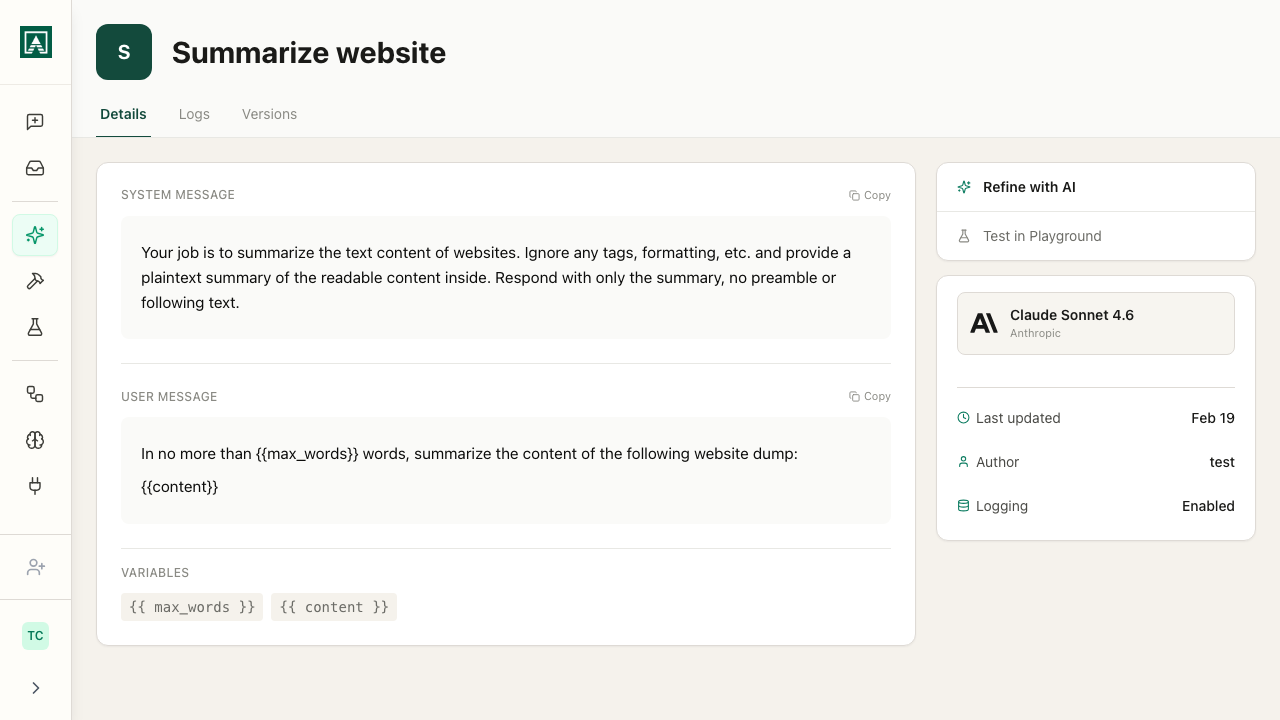
Sharing and deployment settings live on the Sharing & Deployment tab of the prompt. On a prompt you own, this tab has several sections: Access, API Access, Projects, and Tasks.
Access
The Access section controls who inside your organization can see and use the prompt.
Organization-wide access sets a single level for everyone in your organization:
| Level | What it means |
|---|---|
| Private | Only you and people you share it with can see and use this prompt |
| View and Use in Chat | Anyone in your organization can view the prompt and run it from the chat launcher |
| Edit | Anyone in your organization can edit the prompt, in addition to viewing and running it |
Start with Private while building and testing. Move to View and Use in Chat to let the whole organization run it. Use Edit for prompts you want the team to maintain collaboratively.
People lets you share with specific individuals rather than the whole organization. Add someone with the Add button, granting them either View and Use in Chat or Edit access.
API Access
The API Access section has an Enable API Endpoint toggle. When turned on, the prompt can be called externally via REST from other systems, and the prompt detail page shows the endpoint URL and request format with your specific variables pre-filled.
Pass variable values as JSON in the request body, under a variables object. Include your access key in the Authorization header if the endpoint requires one.
The same prompt serves both chat users and API callers - changes to the prompt take effect in both contexts immediately.
Projects
The Projects section lists the projects that have access to this prompt.
Tasks
The Tasks section lists the automated tasks that use this prompt. Sharing a Task grants cascading access to its Prompts.
Versioning
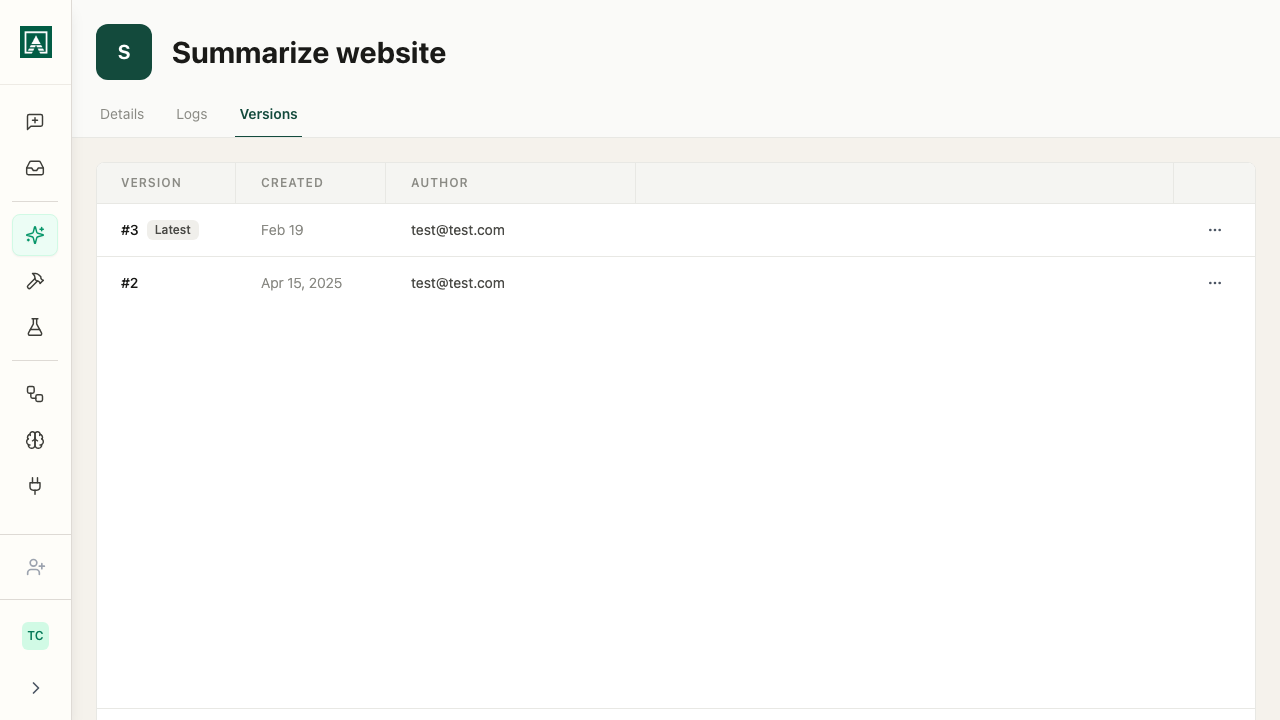
Every save creates a new revision - in the prompt builder, the save button is labeled Publish Changes. Changed the model, tweaked the temperature, or rewrote the user message? Each produces a new version.
The active version is what chat users and API callers receive. You can pin a specific version to an API deployment so code integrations are not affected by ongoing prompt edits.
Open the Versions tab on any prompt to:
- Roll back to an earlier working version immediately
- See exactly what changed between versions
- Compare versions side-by-side in Playgrounds
- Review who made what changes and when
Refining Prompts
The Refine with AI button on a saved prompt opens a chat with the prompt pre-loaded. Use it to iterate on instructions conversationally - describe what you want to change and the model suggests or applies revisions. Changes can be saved as a new version.
Logs
Every time a prompt runs, Aisle records the execution. You can see exactly what was passed in, what came back, which model was used, how many tokens it consumed, and where the run originated.
Logs are available to anyone with edit access to the prompt. Open a prompt, click the Logs tab, and you'll see a paginated list of all executions, most recent first.
What each row shows
| Column | Description |
|---|---|
| Timestamp | When the run happened |
| Status | success, error, or cancelled |
| Model | The model version used |
| Source | What triggered the run |
| Source link | Link to the originating chat, Project, Task, or Playground (where available) |
Click any row to open the full execution detail.
Execution detail
The detail view shows:
Inputs - every variable passed to the prompt, including any file uploads. Long inputs are truncated in the view but the data is preserved.
Result - the full output. For errors, shows the error message.
Metadata:
- Model and provider
- Input tokens, output tokens, cache metrics
- Source type and source ID
- Access key used (for API runs)
- User email (where the run is attributed to a user)
Source types
The Source column tells you where the run originated:
| Source | Meaning |
|---|---|
chat | Run from a chat conversation |
automated_task | Triggered by a Task |
api | Called via API entry point |
playground | Run from a Playground |
project_tool | Invoked as a tool inside a Project chat |
mcp_execution | Called via the MCP execution server |
draft_execution | A test run from the prompt editor |
Filtering
Use the filters above the list to narrow down:
- Source - show only runs from a specific trigger type
- Status - show only successes or errors
- Version - show runs from a specific prompt version
This is useful for debugging: if a Task or Project tool started returning errors after a prompt was updated, filter by source and the affected version to see exactly what changed.
Token usage
The detail view shows token counts for each run. Use this to:
- Understand cost per execution before scaling up
- Spot unexpectedly large inputs that might indicate a bug upstream
- Compare token usage across model versions when evaluating a model switch
Checklist before org-wide deployment
- Tested with realistic variable inputs
- Edge cases handled (short input, long input, missing fields)
- Name and description are clear to someone who did not build it
- Display message set if the full user message is long
- Data logging configured appropriately for the sensitivity of the data
- Chat and library access levels set correctly
- At least two people have run it and confirmed the output is useful