Tools and Memory
A project chat can use two kinds of things you assign to the project: tools it can call (prompts, tasks, connectors, and built-in abilities) and memory it can search (the project's own folder, plus any folders you attach). You configure both from the project home.
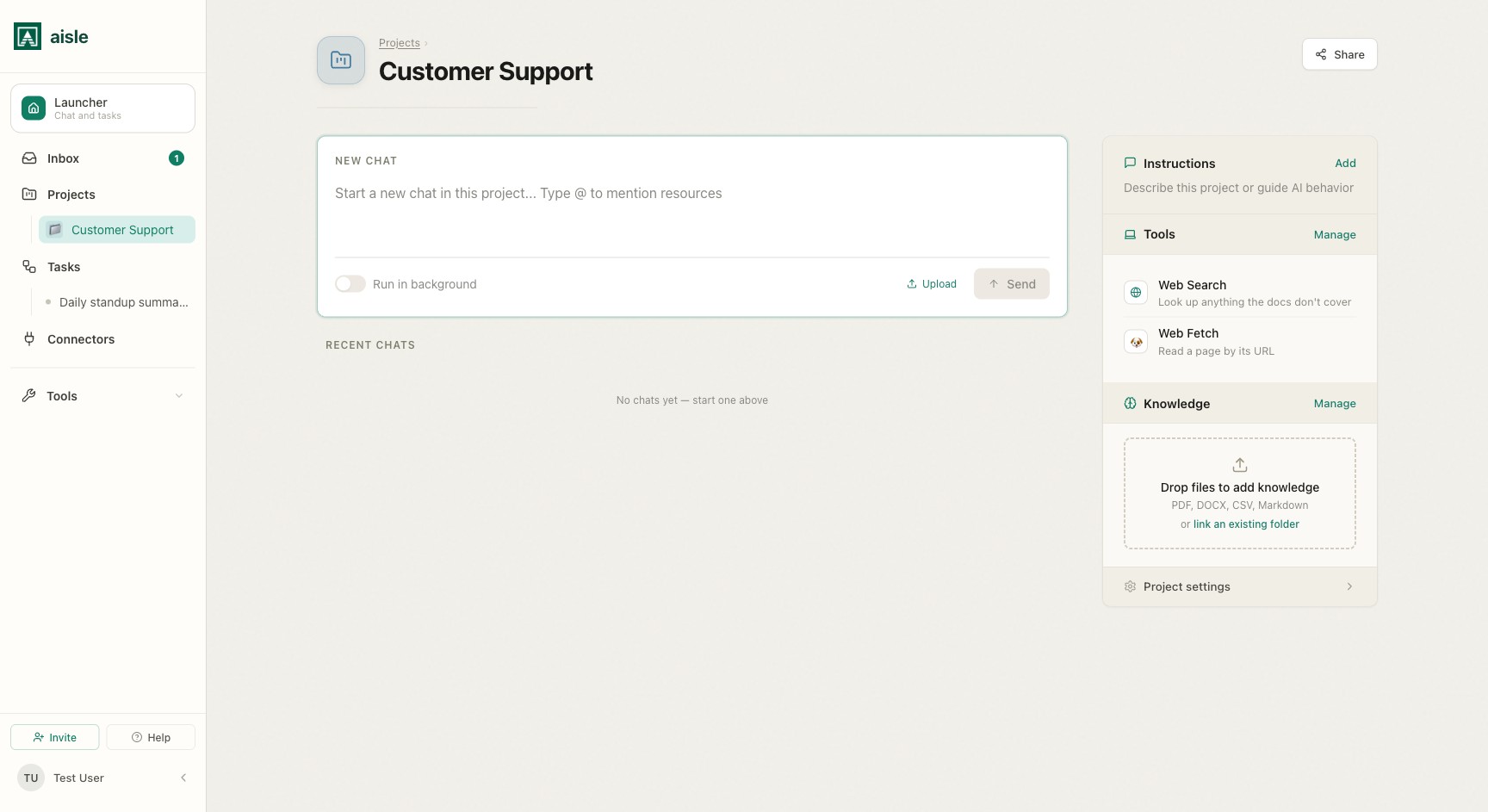
Opening the panels
On the project home:
- The Tools section lists what the chat can call. Click Manage to open the tools catalog.
- The Memories section lists the project's memory. Click Manage to open the memories catalog, or drag files onto the section to add them.
Both open in place on the project page. You need edit access to the project to change them.
Tools
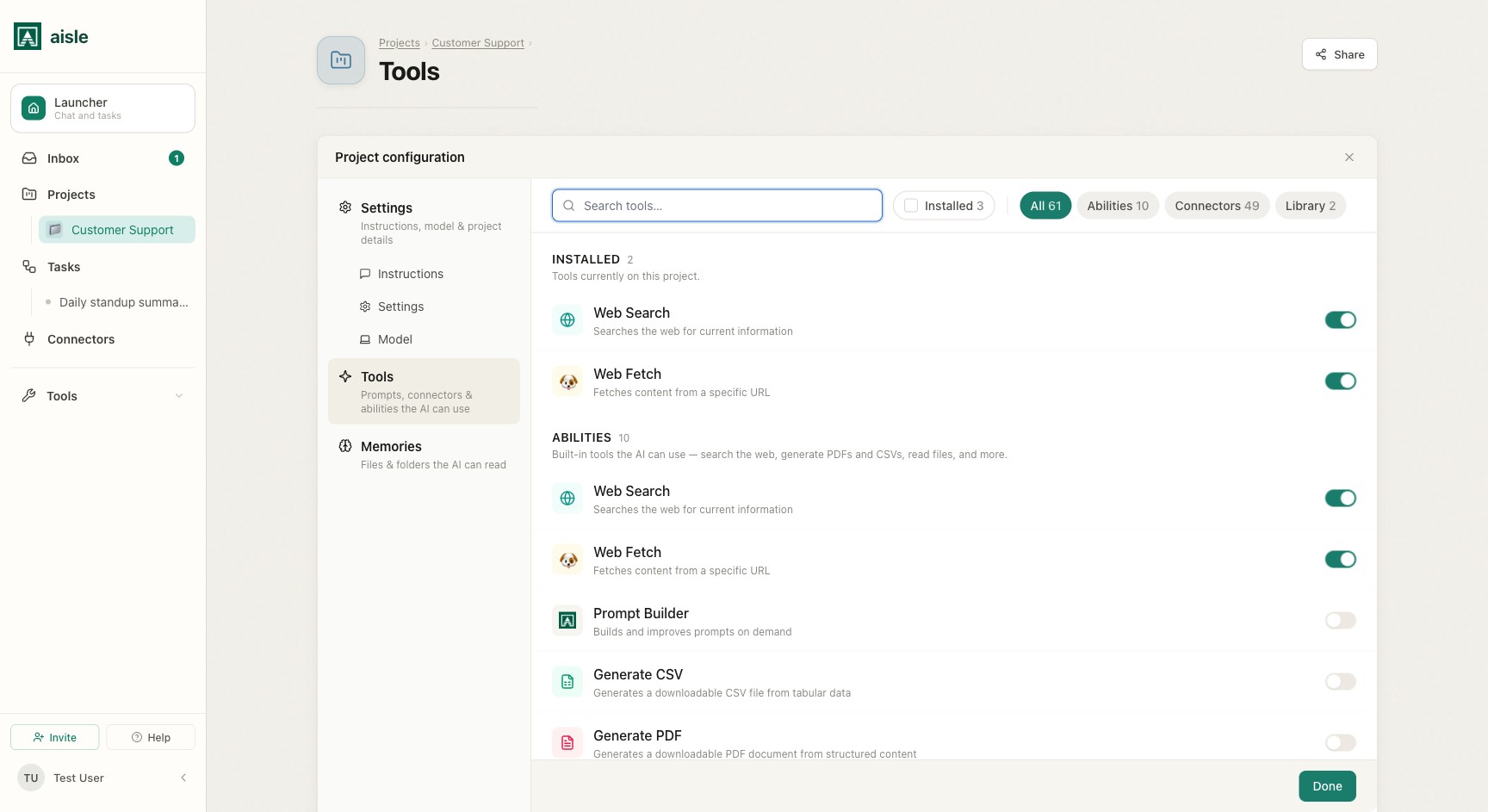
The tools catalog groups everything the project chat can call into three kinds. A search box and a row of filters sit at the top:
- Installed — only the tools currently assigned to the project, with a count of how many.
- All — every available tool, regardless of kind.
- Abilities, Connectors, and Library — narrow the list to one kind, each described below.
Library
Prompts and tasks built in your workspace. Assigning one makes it a tool the project chat can run.
- A prompt is a reusable, versioned instruction. The chat can run it by name.
- A task is a Python automation. The chat can run it and read its output.
Each row is a toggle. Assigned items show as on; toggle again to remove. The list is searchable, and you can sort by name or by most recently updated.
Connectors
External integrations, exposed to the project chat through MCP. Assign a connection to let the chat call that service during a conversation.
Connectors are grouped by provider. If a provider has no connection yet, the row links out to the Connectors directory to add one first — you assign a specific connection, not the provider in the abstract.
Abilities
Built-in tools that ship with Aisle. Toggle each on or off.
| Ability | What it does |
|---|---|
| Web Search | Searches the web for current information. |
| Web Fetch | Fetches content from a specific URL. |
| Prompt Builder | Builds and improves prompts on demand. |
| Generate CSV | Produces a downloadable CSV from tabular data. |
| Generate PDF | Produces a downloadable PDF from structured content. |
| File Reader | Reads metadata and contents of files in the conversation. |
| Prompt Library Access | Lists prompts, views revisions, and reads execution logs from your library. |
| Task Logs Access | Lists recent task executions, statuses, output previews, and errors. |
| Project Chat Search | Searches and reads your own previous chats in this project. |
| All My Chats | Searches and reads your chats across the whole organization. |
Project Chat Search and All My Chats let the model read past conversations. When either is on, the Tools section shows a note saying so, because the model can then read chat history within the project or across the organization.
How the project chat uses tools
Every assigned tool is available to the model at all times. It reads the tools' names and descriptions and decides which to call. To force a specific tool, type @ in the chat input and pick it — the model is then instructed to use that tool.
Because the model chooses tools by their names and descriptions, clear descriptions matter. "Competitor Analysis: research and summarize a company's positioning" is more useful than "Analysis Tool: runs the analysis." See Using Projects for @ mentions and chaining.
Memory
A project can search memory folders during chat. Folders assigned as reference are searched automatically; folders assigned as output can also receive documents the chat writes.
The project's own memories
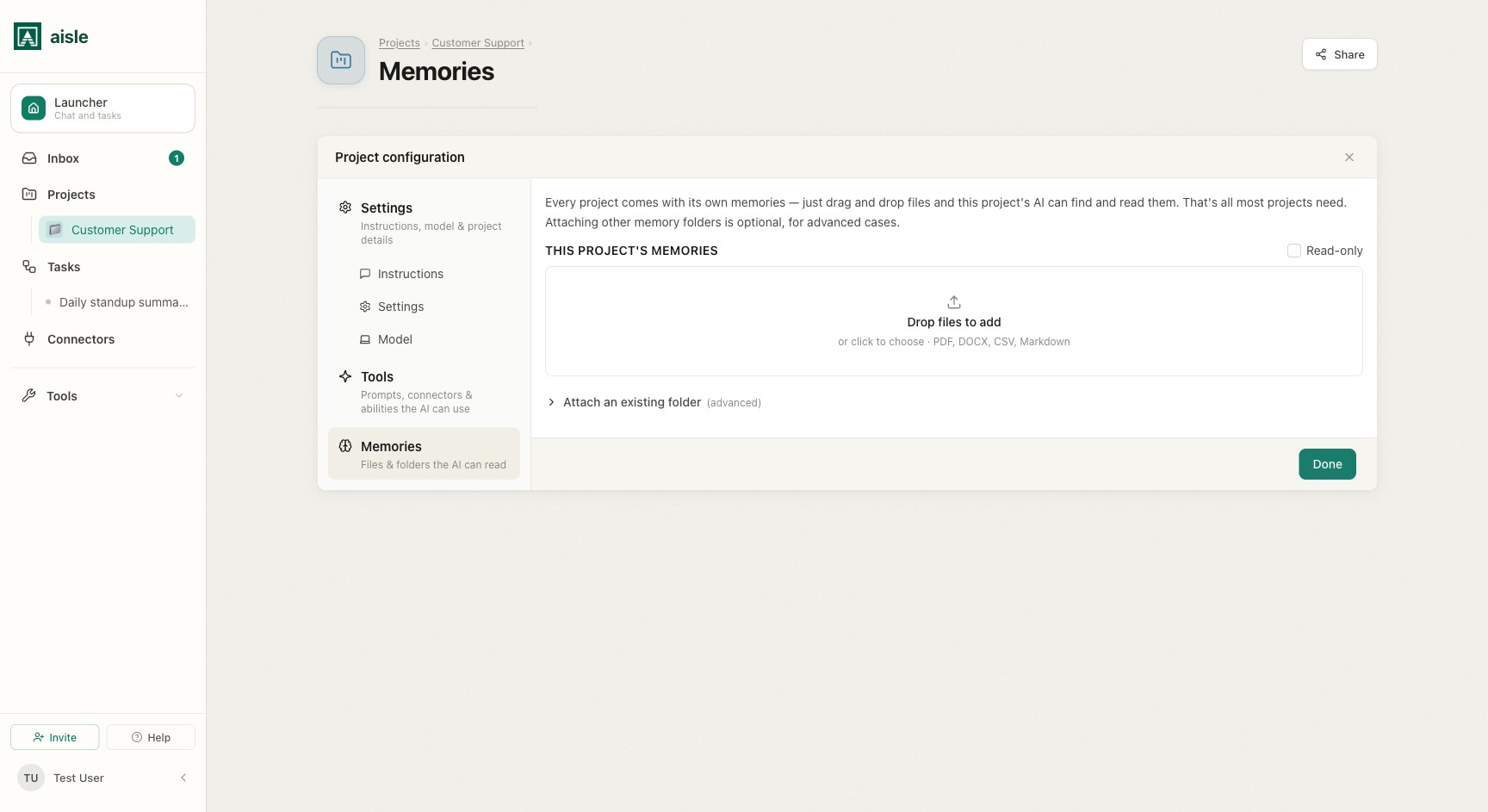
Every project has its own memory folder. Drag files onto the Memories section — PDF, TXT, or markdown — and they are ingested and made searchable. For most projects this is all you need: drop files in, and the project chat can find and read them.
The project's own memories are read + write by default: the chat can search them and can save its own notes, drafts, and results back. Check Read-only to let the chat search but not write. Uploads and pages still work either way.
Attaching a memory folder
Attaching another folder is optional, for advanced cases. Under Attach an existing folder, toggle any workspace folder on to attach it. You can only attach folders you can already view.
Each attached folder has a Read-only checkbox:
- Checked (read-only) — the chat can search the folder but not change it.
- Unchecked (read + write) — the chat can search the folder and also add new documents and update existing ones.
New attachments start read + write.
Reference and output
At runtime a folder assignment carries two independent capabilities:
- Reference — the project chat searches the folder automatically when a question looks relevant, and cites the source document.
- Output — the chat can write documents into the folder. A project that saves results to an output folder accumulates knowledge that later conversations can draw on.
The Read-only checkbox is the output switch: read-only leaves reference on and output off; unchecking it turns output on as well.
Embeddings and search
When a folder has embeddings enabled, it is a semantic knowledge base — the chat finds passages by meaning, not just exact text. The project's own memory folder is embedded, so dropped files are searchable straight away. A folder without embeddings can still be listed and read document by document, but not searched semantically.