Inline prompts
In a task, an AI call is a prompt, and a prompt is an object — not a string you pass to a model. A prompt carries the model and its settings, a system and user message with typed variables, an optional structured-output schema, attached files, and provider web tools. In the editor, every LLM call is an inline prompt: you create one, then run it by slug.
You have two ways to run a prompt from a task:
- An inline prompt — created inside the task and owned by it. Use this when the prompt only exists to support this one task.
- A library prompt — a standalone prompt in your organization's library, called by its slug. Use this when several tasks, projects, or chats should share the same instruction.
Both run the same way from code, and both resolve the prompt's latest version at call time.
Creating an inline prompt
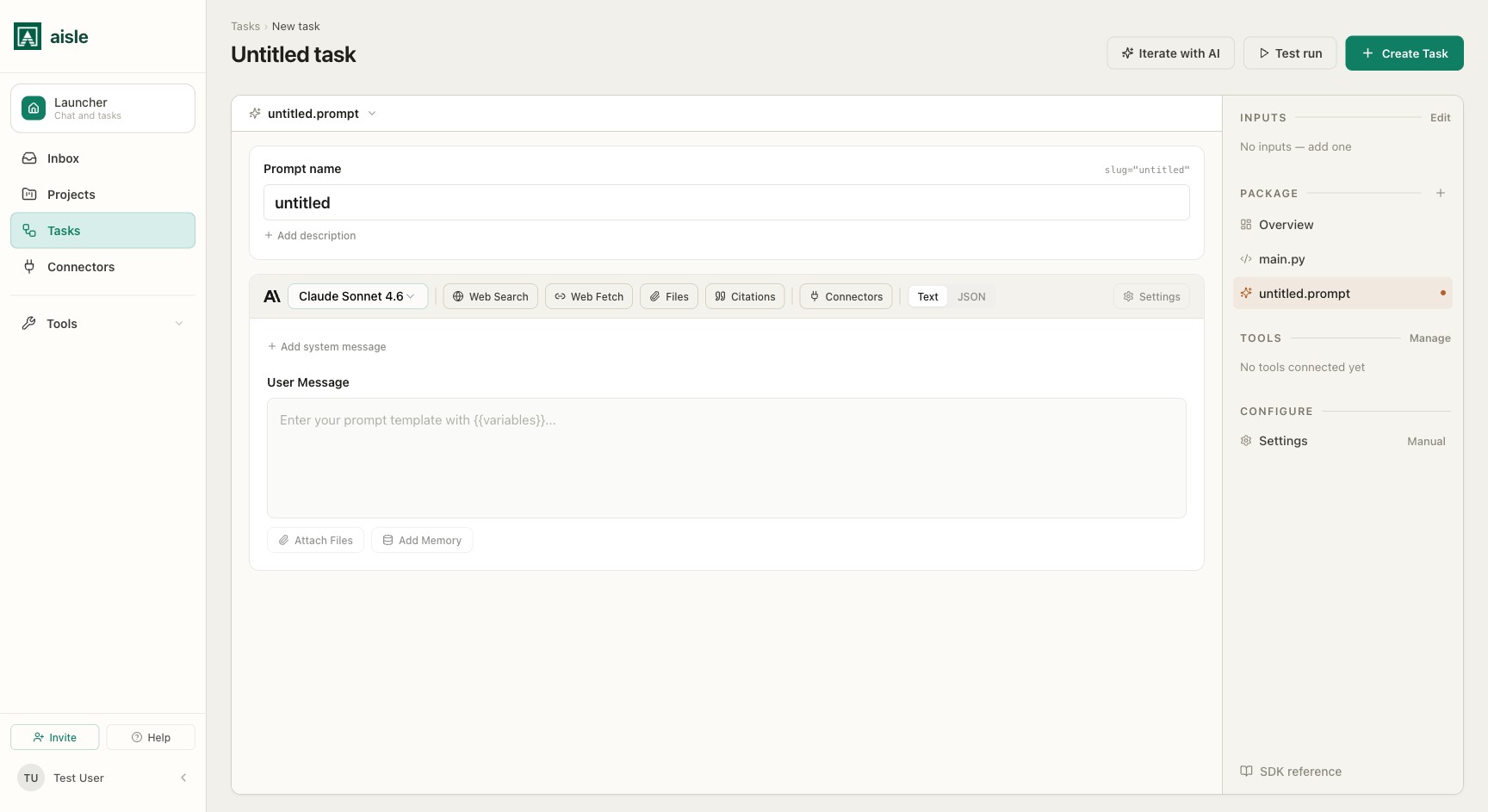
Open the Tools panel and click New inline prompt (it also appears under the Prompts tab there). This opens the inline prompt editor:
- A model bar — the provider and model name, plus a row of clickable UI controls for the call:
- Toggle buttons for Web Search, Web Fetch, Files, Citations, and Connectors. These are the UI equivalents of the provider web tools you can also invoke from code (see Provider web tools below).
- A Text / JSON output-format toggle that switches structured output on and off.
- A Settings popover exposing Max Tokens, Temperature, Thinking, and Effort. Temperature may be hidden on some reasoning models.
- A system message and a user message. Write variables into the message as
{{variable}}placeholders; Aisle detects them and shows them as chips. - Attach Files and Add Memory to bake files or memory folders into the prompt.
- An output schema card, shown when the JSON toggle is on.
Each inline prompt has a slug that is unique within the task. You call the prompt by that slug from your code.
Running a prompt
Run a prompt with aisle.ai.run_prompt. Pass the slug (or a UUID) and a dict of variables:
brief = aisle.ai.run_prompt(
    "account-brief",
    {"company": company, "research": research},
)
The keyword form is equivalent:
brief = aisle.ai.run_prompt(
    slug="account-brief",
    variables={"company": company, "research": research},
)
run_prompt returns the rendered output as a string, or a dict when the prompt has a structured-output schema. You can also attach files with files=[...].
Structured output
When a prompt uses structured output, the model is constrained to JSON that matches a schema and the call returns a dict instead of a string. Turn it on in an inline prompt with the Text / JSON toggle and define the schema in the output schema card. For the full structured-output behaviour and the schema builder, see Building prompts.
For a one-off aisle.ai.raw call, pass output_schema directly to get a dict back — see One-off calls below. Structured output is available on models that support it.
One-off calls
Use aisle.ai.raw when you want a single model call without creating a prompt object (aisle.ai.prompt is an alias):
summary = aisle.ai.raw(
    "Summarize this research in five bullets.",
    model="claude-haiku-4-5",
    system="You are a concise analyst.",
    temperature=0.2,
)
raw accepts model, system, temperature, max_tokens, output_schema, files, and tools. Prefer an inline or library prompt when the instruction should be versioned, reused, or edited outside the task.
Model selection
Set the model per prompt in the inline prompt's model bar, or per call with model= on run_prompt and raw. If you omit the model or pass one that isn't available, the call falls back to your organization's default model. Swapping the model does not change the prompt's slug, variables, or output schema — callers stay the same.
Provider web tools
aisle.ai exposes each provider's built-in web and search tools as direct calls:
| Call | What it does |
|---|---|
aisle.ai.anthropic_web_search(query) | Web search using Anthropic's built-in tool |
aisle.ai.anthropic_web_fetch(url) | Fetch and extract a URL's text with Anthropic |
aisle.ai.openai_web_search(query) | Web search using OpenAI's built-in tool |
aisle.ai.gemini_google_search(query) | Google Search grounding via Gemini |
aisle.ai.gemini_url_context(urls) | Read and reason over one or more URLs with Gemini |
aisle.ai.xai_x_search(query) | Live search of X (Twitter) via xAI |
articles = aisle.ai.gemini_google_search(f"{company} funding news")
These call the provider's search tool and return the results to your code. To let a model use a connected integration as a tool during a raw call, pass tools=[{"provider": "...", "credential": "...", "allowed_tools": [...]}].
Where to go next
- Assigning tools — connect the integrations and memory a task can use.
- SDK Reference — the full
aisle.aiAPI.