MCP Connectors
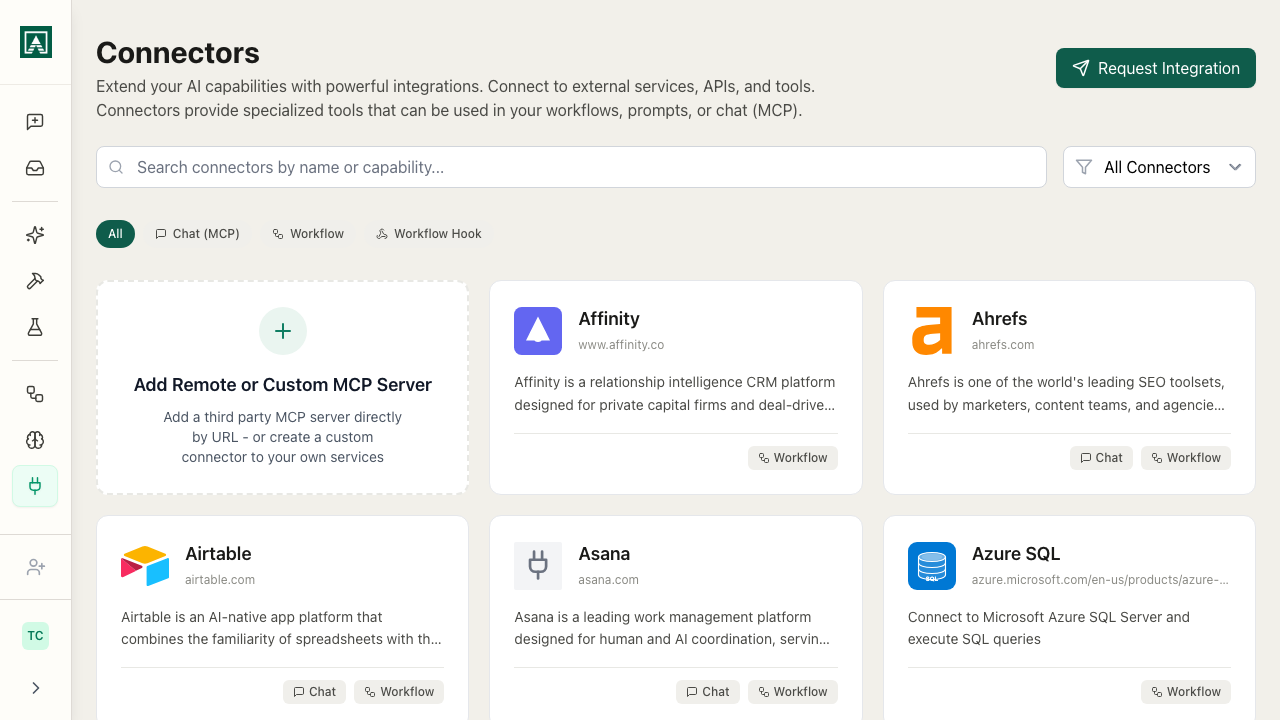
MCP (Model Context Protocol) connectors give models access to external tools and data sources during a conversation. When a connector is active, the model can call its tools - searching a database, querying an API, reading from a service - and use the results in its response.
Connectors are available in chat, prompts, and projects.
Adding a Connector
Navigate to Connectors in the sidebar.
You'll see two categories:
Preset connectors - services that Aisle has pre-built integrations for (Airtable, Asana, and others). If your organization has enabled a preset, you can connect your account by clicking it and following the auth flow.
Custom connectors - any MCP-compatible server you want to connect. Click Add Custom Connector and fill in the details.
Custom Connector Setup
| Field | Description |
|---|---|
| Name | Display name for this connection |
| URL | The MCP server endpoint |
| Transport | HTTP or SSE (Server-Sent Events) - check the server's documentation |
| Auth method | How the server expects to be authenticated |
Auth methods:
- None - no authentication required
- Bearer token - the server expects
Authorization: Bearer <token> - API key pair - access key ID and secret (used for AWS Bedrock and similar)
- OAuth - redirect-based OAuth flow (for supported preset connectors)
Once saved, Aisle connects to the server and loads its available tools. The connection status shows whether tools loaded successfully.
Using Connectors in Chat
In any chat, click the tools icon to see your available connectors. Enable the ones you want active for that conversation. The model can then call those tools when relevant.
You can also connect MCP servers to Prompts and Projects. In a project, enabled connectors are available automatically in every project chat without needing to turn them on each time.
Managing a Connection
Click any connector to open its management panel:
- View connection details and update auth credentials
- Bearer tokens - create and revoke tokens for API access to this connection
- Attach to prompts - pin specific prompts to this connector
- Attach to workflows - connect workflow executions to this connector
Organization Connectors
If you are an org admin, the Organization tab on the Connectors page lets you enable preset connectors for your team. Enabling a preset makes it available for team members to connect their own accounts - it does not connect on their behalf.
For the full list of available preset connectors, see app.aisle.sh/connectors.