Deploying & sharing
Saving a task puts it live. Create Task (or saving an existing task) writes a new version and makes it the version that runs — there is no separate deploy step, no servers, and no build. Every model binding and integration you assigned is already wired in. The task's live behavior is always its latest saved version. From there you give it a trigger, decide who can open and run it, and choose where its output lands.
Triggers and entry points
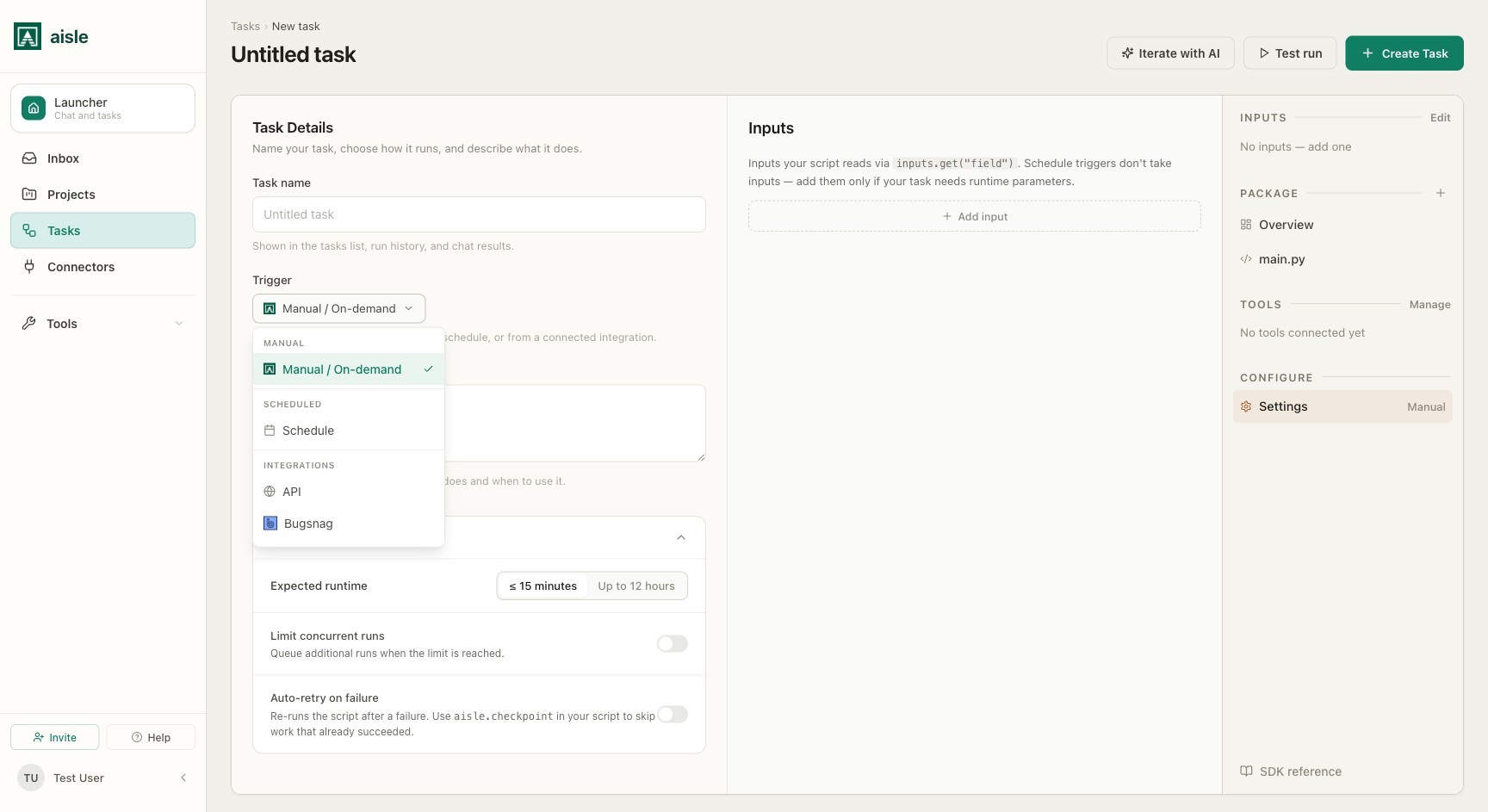
A task can be started on demand or from an entry point. A single task can have several at once — a schedule, an API endpoint, and a chat launcher entry, for example. You choose the trigger in the task's settings.
| Trigger | Starts the task when… |
|---|---|
| Manual | You click Run Now on the task page |
| Schedule | A cron schedule fires, in the timezone you set |
| API | An HTTP POST hits the task's endpoint |
| Webhook | An external system POSTs to the task's generated webhook URL |
| Polling | A connected source has new data (new email, new article) |
| Integration event | A connected service fires an event (Slack message, GitHub push, Jira issue, and similar) |
| Project tool | A project agent runs the task as an assigned tool |
Every trigger populates aisle.inputs, which merges trigger data with user inputs. Read them in code with aisle.inputs.get("name", default).
Running a task manually
Click Run Now on the task page. If the task defines required inputs, Aisle opens a form before starting the run; fill it in and submit. When the run starts, Aisle opens the execution detail page where output, logs, and errors stream in.
The task detail page's ⋯ (overflow) menu holds Archive and Delete task.
Inputs become the run form
You declare a task's inputs as typed fields in the editor's Inputs panel. Each field's type is chosen from the Add input type dropdown:
| Type | What it is |
|---|---|
| Text | Single-line string |
| Long text | Multi-line string |
| Number | Numeric value |
| Boolean | True/false |
| JSON | Arbitrary JSON value/object |
| List | Array of values |
| File | File upload |
| Select | One choice from defined options |
| Multi-select | Multiple choices from defined options |
| Date | Calendar date |
| Date & time | Date with time |
| Memory | A memory folder reference |
| Credential | A connected integration credential |
Each input, via Expand settings in the Inputs editor, also has a Description, a Default value, and a Required toggle.
Aisle renders those fields as a form, so anyone can run the task by filling it in without opening the code. The same input schema is reused everywhere the task runs: the run form, the API endpoint's request body, and the task's schema when it's called as a tool.
API endpoint
When a task has an API entry point, it gets a unique URL. Send an HTTP POST with the task's inputs as a JSON body to run it from another system, and read the result from the response. The task page shows a Code samples card with ready-to-copy curl and JavaScript snippets built from the task's inputs.
Return a machine-readable result from your code with aisle.output(...); its value is the API response body.
aisle.output({"company": company, "brief": brief})
API endpoints can require an access key, sent as Authorization: Bearer <key>. Access keys are per-endpoint, labeled, and revocable, and a key is shown only once when created.
Webhook endpoint
A Webhook entry point generates a URL that turns an inbound HTTP POST into a run. Keys in the JSON body become task inputs. The task page shows the same Code samples card for the webhook, and webhook endpoints support the same access-key options as API endpoints.
Run limits
Runs execute on Aisle's managed, sandboxed runtime with a few limits worth knowing:
- Per-run duration is bounded. A single invocation has an execution timeout (about 14.5 minutes by default). For work that spans longer, use retries and checkpoints so a run resumes rather than running for hours in one shot — see Concurrency and state.
- Max concurrency. Cap how many runs of a task execute at once so overlapping runs don't overrun a rate-limited service.
- Retries. Configure retry count and backoff so transient failures recover automatically.
- API rate limit. The task API endpoint is rate limited.
Set the timeout, retries, and concurrency in the task's Settings.
Sharing the task
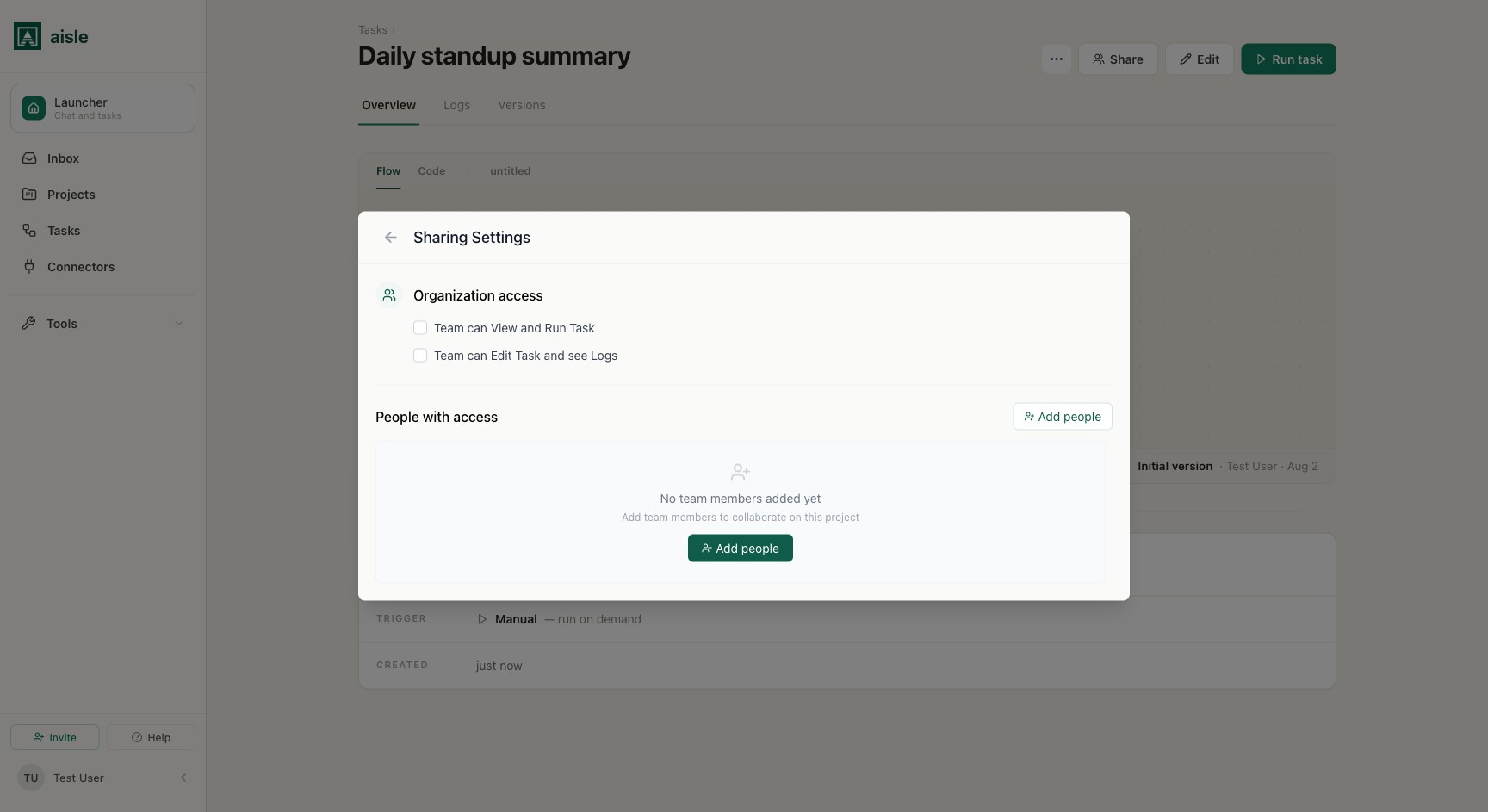
Click Share on the task page to open the sharing dialog. You can share a task two ways, and they combine:
- With your organization. Set an org-wide access level: View and Run lets any member open and run the task; Edit lets them change it. The default is private to you.
- With specific people. Add individuals and give each View and Run or Edit.
Only the task's author or someone with edit access can change sharing.
Outputs
A run reaches people through its output. A task can produce several kinds:
Create a chat. aisle.create_chat(title, content) posts the result as a chat thread a person can open. By default it is read-only — a notification the recipient can't reply to. Pass read_only=False with a model (or a project_id) to make it an interactive chat they can follow up in. shared_with=[...] grants specific people access and share_with_org="view" (or "chat") shares it with every active member of your organization.
aisle.create_chat(
    title=f"{company} account brief",
    content=brief,
)
Send through an integration. Write the result back into a connected service, for example aisle.integrations.slack.create_message(...). See Assigning tools.
Publish a project page. When a task is bound as a page's generator, aisle.output(value, type="html") (or type="markdown") publishes the page's next edition after each successful run.
Return an API response. aisle.output(value) sets the run's return value, which is the response body for an API-triggered run — see API endpoint above.
Calling a task as an MCP tool
A task is callable as a tool from an external MCP client such as Claude Code or Cursor. Aisle exposes each task the connection is authorized for as an MCP tool, built from its current input schema — the same typed inputs as the run form. Because a task can run longer than a client's tool-call timeout, the call starts the run and, if it's still going, returns an execution id to poll.
Set this up from the Connectors page. For the full flow — connecting a client, tokens, and the poll model — see Execution and Prompts MCP Servers.
Where to go next
- Concurrency and state — parallel fan-out, retries, checkpoints, and cache.
- Versions and logging — the execution record, retries, and rollback.
- SDK Reference —
aisle.inputs,aisle.output, andaisle.run.