Telegram Webhook
Trigger Aisle workflows from Telegram messages and bot interactions. Unlike most webhook integrations, Telegram registration is handled automatically by Aisle - no manual URL configuration needed.
Connector Setup
First, connect Telegram from the Connectors page. You'll need a Telegram Bot API token. To create a bot:
- Open Telegram and message @BotFather
- Send
/newbotand follow the prompts to name your bot - Copy the API token BotFather gives you
- Paste it when connecting Telegram in Aisle
Once the connector is active, Aisle automatically registers the webhook URL with Telegram. You do not need to configure anything in Telegram's settings manually.
Setup Instructions
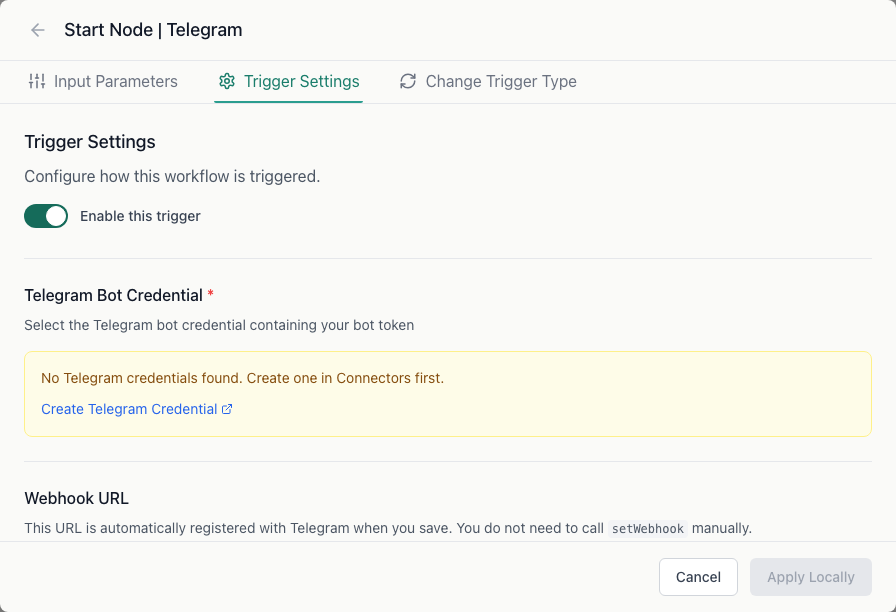
Step 1: Create the workflow
Create a new workflow and select Telegram as the trigger type.
Step 2: Configure trigger settings
In the workflow's Trigger Settings tab:
- Secret Token (optional) - a token Aisle sends with every request to Telegram and checks on incoming webhooks. Adds an extra verification layer.
- Event Types (optional) - filter which Telegram event types trigger this workflow. Leave empty to receive all event types.
Supported event types: message, edited_message, channel_post, edited_channel_post, callback_query, poll_answer, inline_query, my_chat_member, chat_member, chat_join_request
Workflow input variables
| Variable | Description |
|---|---|
event_type | Telegram event type (message, callback_query, etc.) |
chat_id | Chat or channel ID |
user_id | Sender's user ID |
text | Message text or callback query data |
message_id | Message ID |
callback_data | Data from inline keyboard button press |
payload | Complete raw Telegram update object |
Troubleshooting
Workflow not triggering - Verify the bot has been added to the group or channel you're monitoring. Users must /start the bot in direct message conversations.
Only some events arriving - Check the event type filter in trigger settings. If types are configured, only those types will trigger the workflow.