Testing Prompts Side by Side
Playgrounds let you run multiple prompt configurations in parallel and compare their outputs in a single view. Use them to compare two versions of a prompt, or to run the same prompt against different models.
Opening a Playground
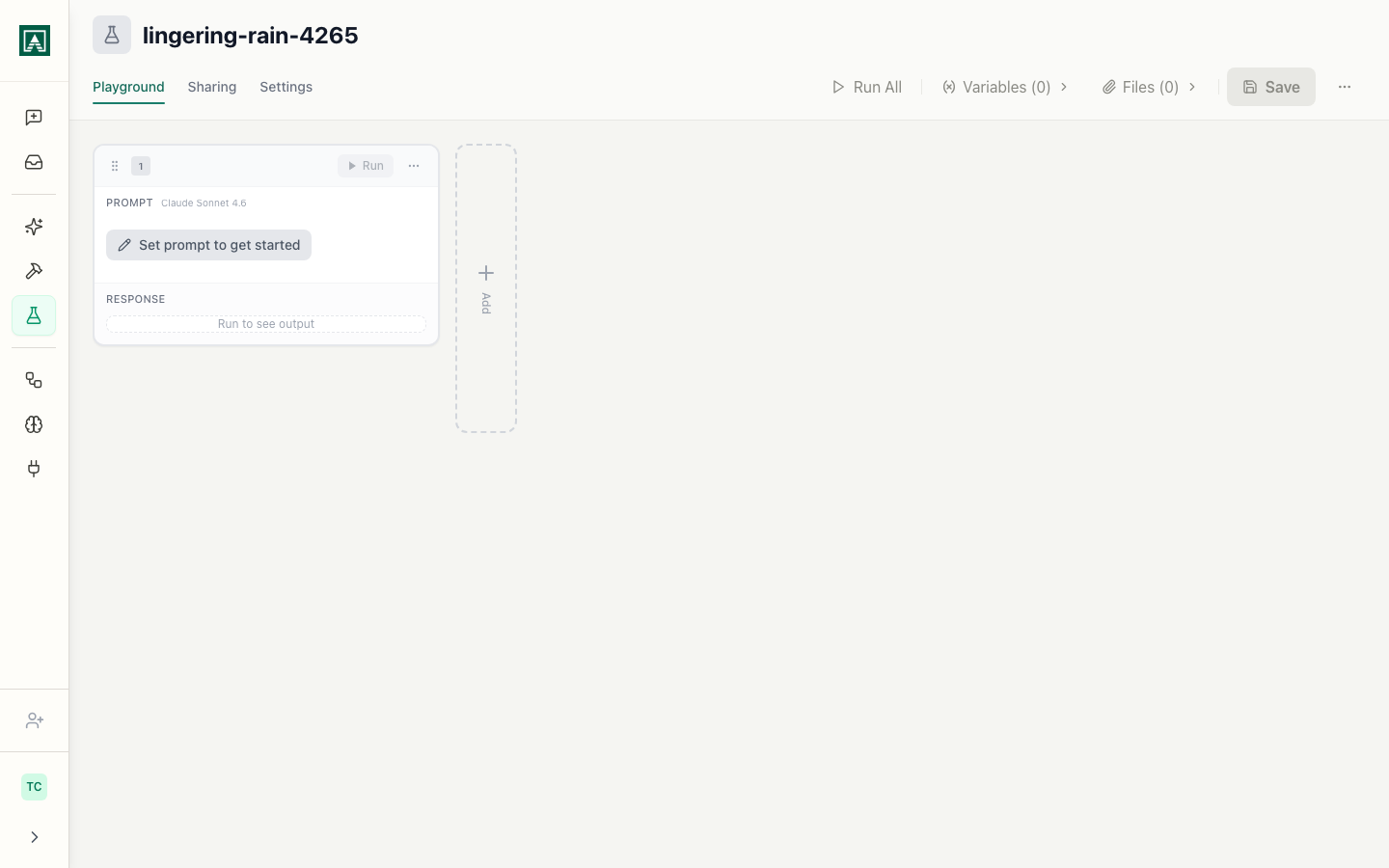
- In the sidebar, click Playgrounds.
- Click New Playground.
A blank Playground opens with one empty column.
Adding Columns
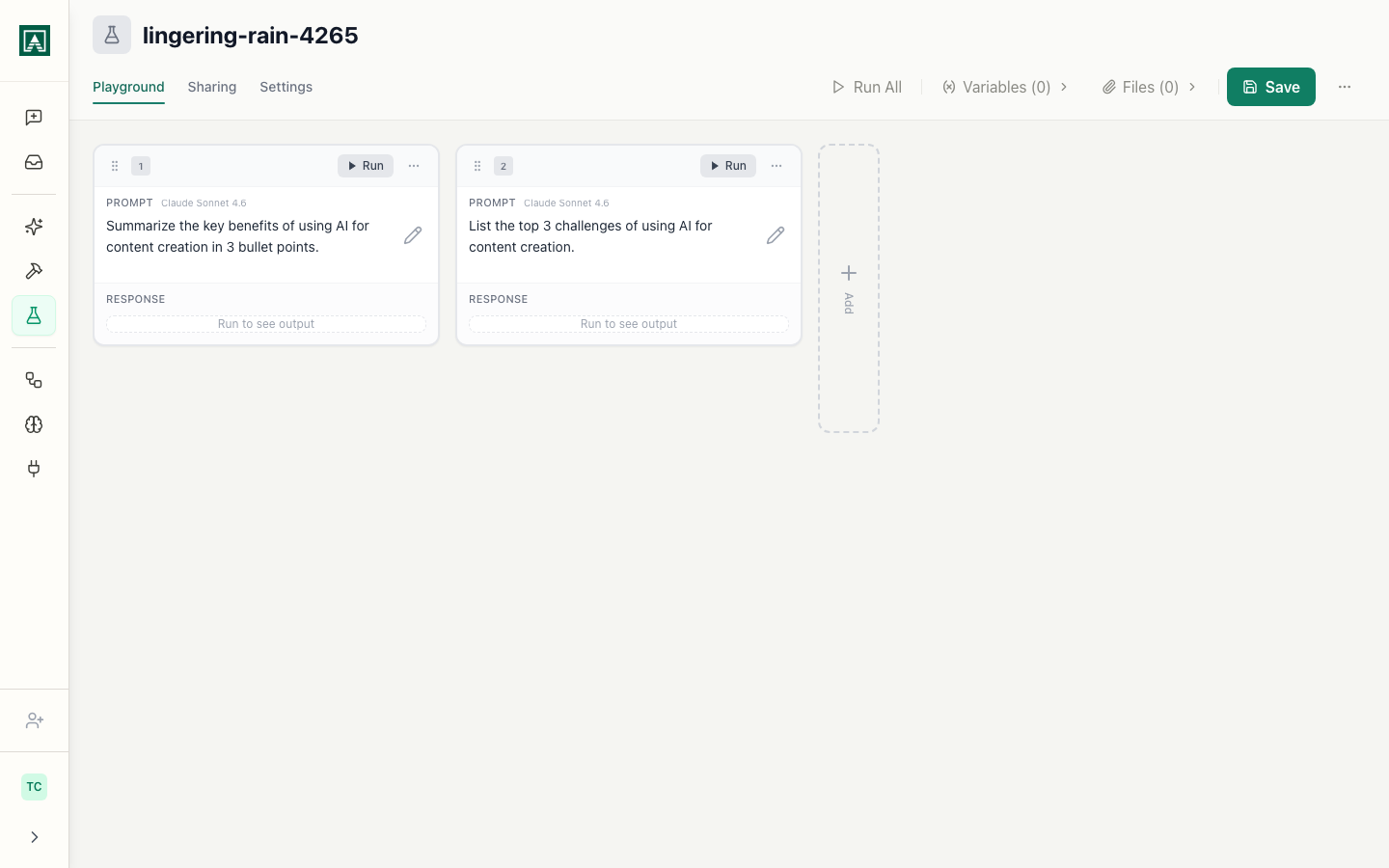
Each column holds one prompt configuration. A Playground can have multiple columns running simultaneously.
Adding the first column
- Click Load Prompt in the first column.
- Select a prompt from the library.
- Select the version you want to test.
Adding a second column
- Click Add Column.
- Select the same prompt from the library.
- To compare versions: select a different version of the same prompt.
- To compare models: select the same version, then change the model in the column's model selector.
Repeat to add more columns.
Column configuration options
| Setting | What it controls |
|---|---|
| Prompt | Which prompt from the library to load |
| Version | Which saved version of that prompt to use |
| Model | The model used to run this column |
| Parameters | Temperature, max tokens, and other inference settings |
Running the Playground
- Enter your test input in the Input panel. All columns share the same input.
- Click Run All.
Each column runs simultaneously. Outputs appear below each column header as they complete. Each output includes a token count and response time.
Reading the Results
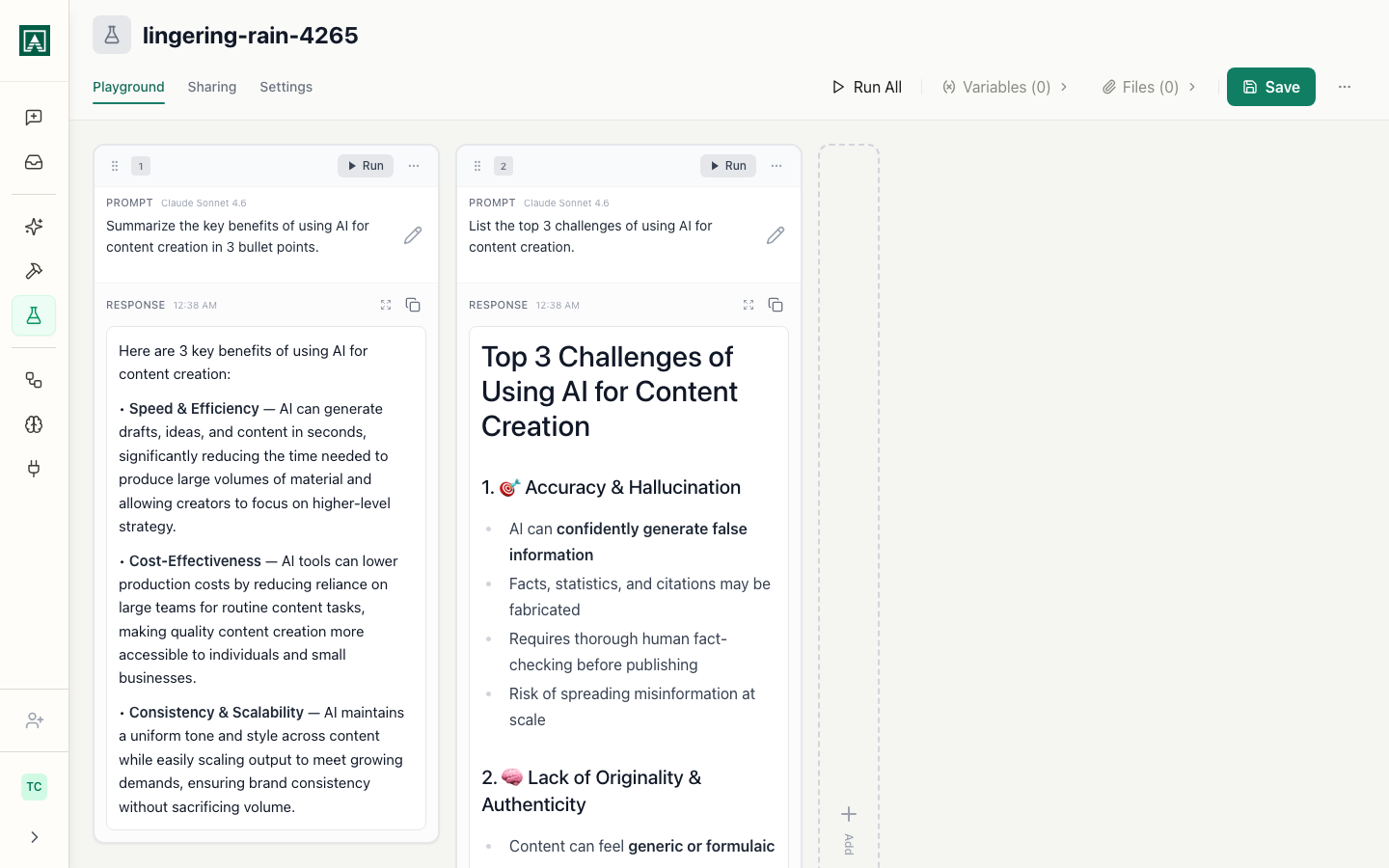
Results are displayed in columns, left to right, matching the order you added them. You can scroll horizontally if the columns extend past the viewport.
Each result shows:
- The full model output
- Token count (prompt tokens + completion tokens)
- Response time in milliseconds
Saving the Run
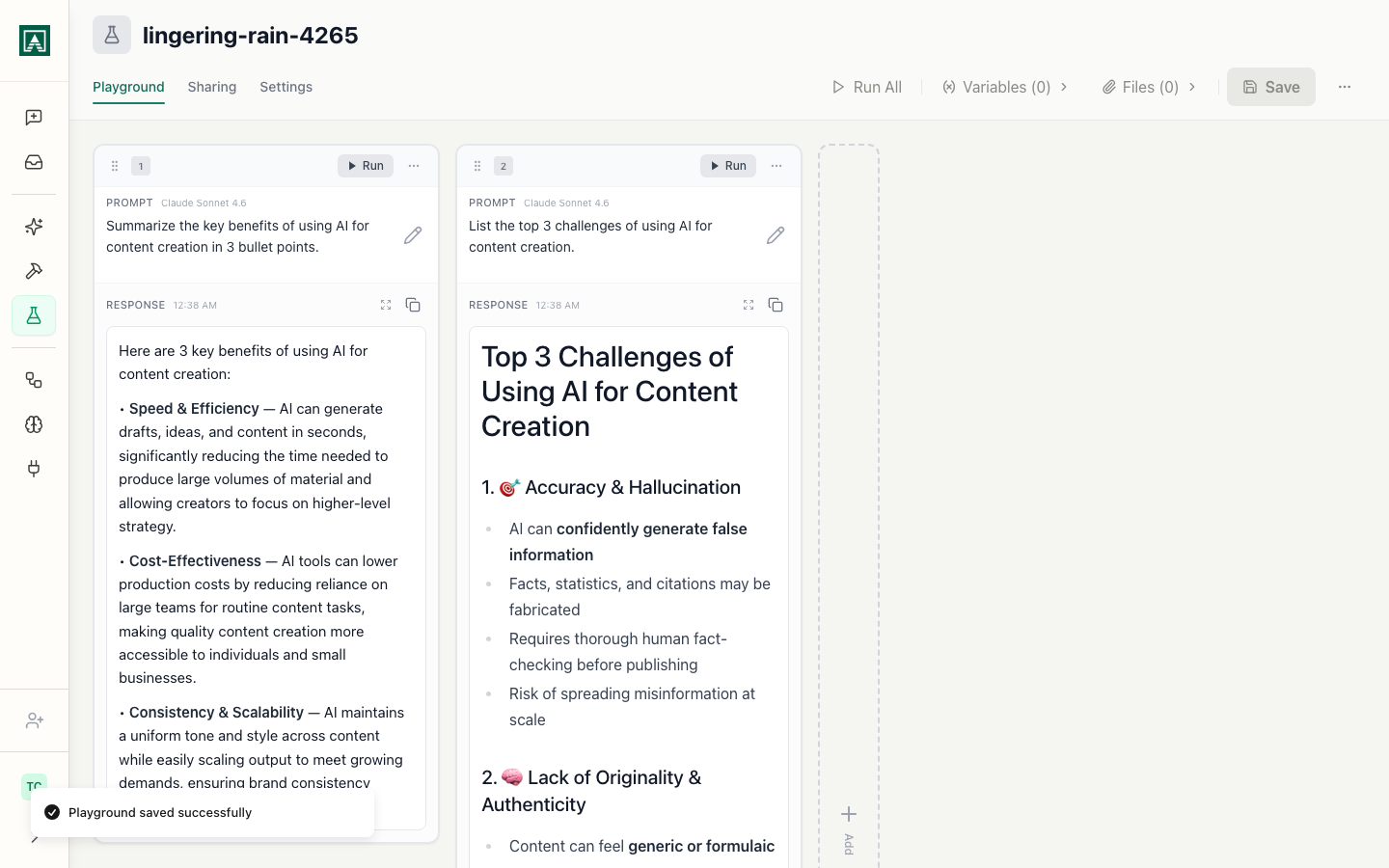
Click Save to save the current Playground state.
A saved Playground preserves:
- All column configurations (prompt, version, model, parameters)
- The input you entered
- The actual outputs from each column
The outputs persist indefinitely. Returning to the Playground days, weeks, or months later shows the same results from the original run - the outputs are not regenerated on open.
Sharing with a Teammate
- Save the Playground.
- Copy the URL from your browser's address bar.
- Send the URL to anyone in your organization.
Anyone in the org can open the link and see the same view you saved: the column configurations, the input, and the exact outputs. No account with special permissions is required - any org member can view it.
Common uses:
- Attaching evidence to a prompt change PR
- Documenting why a particular model was selected
- Showing a teammate the difference between two prompt versions before merging
The saved Playground becomes a record of the decision. Link it from a PR description, a Notion doc, or a Slack thread - whoever opens it sees the same outputs you saw.