Bugsnag Webhook
Trigger Aisle workflows from Bugsnag error alerts - new exceptions, error spikes, reopened errors, and project notifications.
Setup Instructions
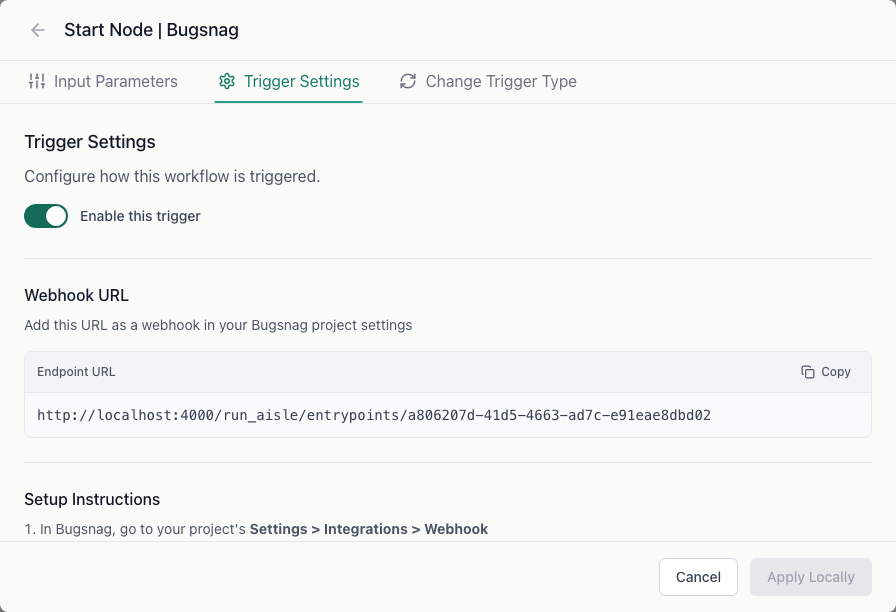
Step 1: Create the workflow
Create a new workflow and select Bugsnag as the trigger type.
Bugsnag webhooks do not require a signing secret. Aisle verifies Bugsnag requests by IP address.
Copy the webhook URL from the trigger settings.
Step 2: Configure the webhook in Bugsnag
In your Bugsnag project, go to Settings > Integrations & email > Webhook.
Paste the webhook URL from Aisle and click Save.
Bugsnag will send a test notification to verify the connection.
Workflow input variables
| Variable | Description |
|---|---|
trigger_type | Bugsnag trigger (firstException, errorEventFrequency, powerTen, exception, reopened, projectSpiking) |
trigger_message | Human-readable description of what triggered the alert |
error_class | Exception class name |
error_message | Exception message |
error_url | URL where the error occurred |
severity | Error severity level |
status | Error status |
unhandled | Whether the error was unhandled (true/false) |
release_stage | Environment (production, staging, development, etc.) |
context | Error context string |
project_name | Bugsnag project name |
account_name | Bugsnag account name |
affected_user | User object (name, email) |
affected_user_display | Formatted user display string |
payload | Complete raw Bugsnag webhook payload |
Common use cases
- Post a Slack message with error details when a new exception is first seen
- Create a Jira ticket when an error reaches a frequency threshold
- Alert a specific team based on
release_stage(e.g. only page on-call for production errors)
Troubleshooting
Workflow not triggering - Verify the webhook URL is correctly pasted in Bugsnag and that the integration is enabled. Bugsnag sends a test notification on save - check your workflow run logs to confirm it arrived.