Slack Webhook
Connect Aisle workflows to your Slack workspace to trigger workflows from Slack messages and mentions.
Connector Setup
First, enable the Slack connector: https://app.aisle.sh/connectors/slack
This is the connector. You can simply enable it to use these integrations in workflows. However - if you want your workflow to be triggered by an external event (webhook) in these systems - such as a Slack message received - you have some custom setup to do.
Setup Instructions
Step 1: Create the Workflow
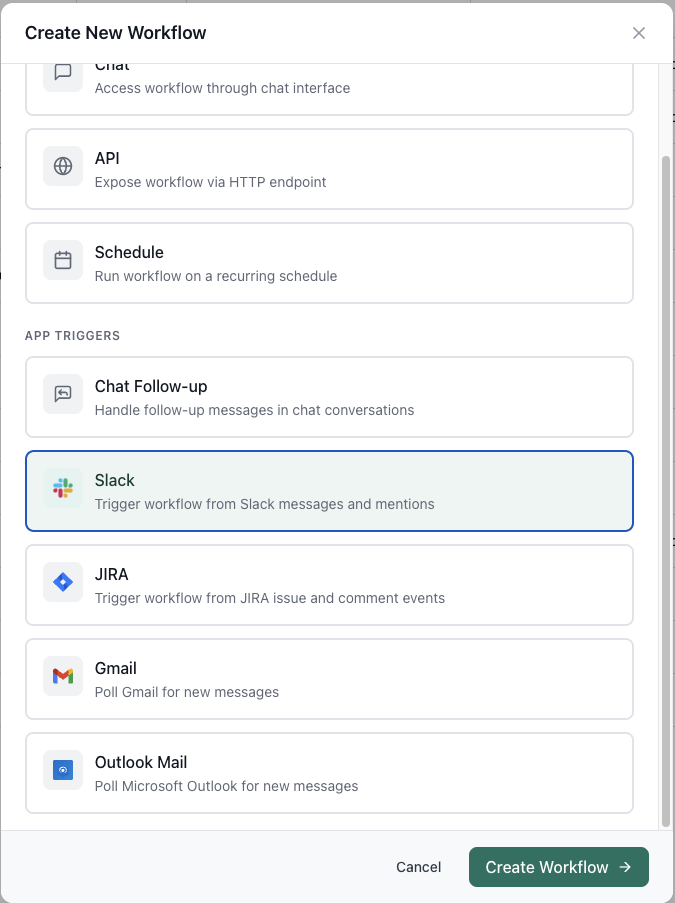
Create a new workflow and select Slack as the trigger type. This will automatically configure your workflow to receive Slack events.
Step 2: Configure Trigger Settings
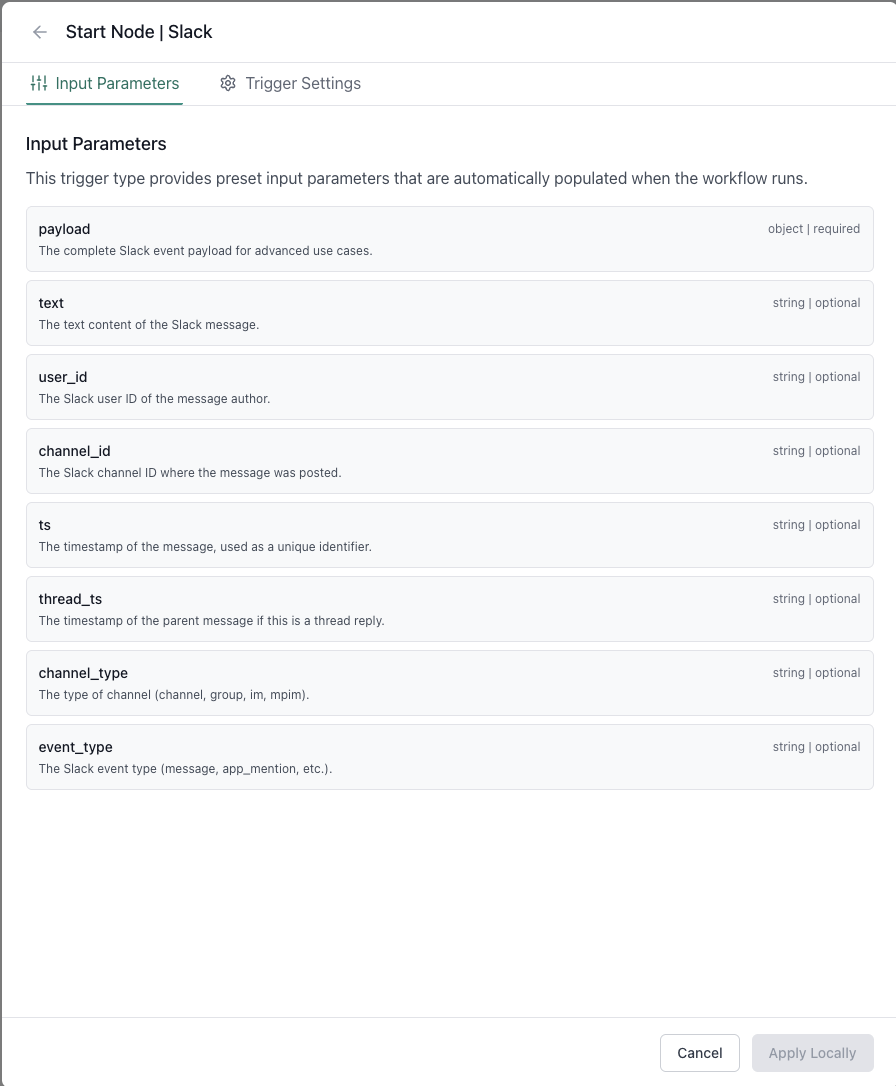
Once created, your workflow will be automatically configured with the necessary input parameters. You can view and configure these in the Input Parameters tab, and access app-specific settings in the Trigger Settings tab.
|
|
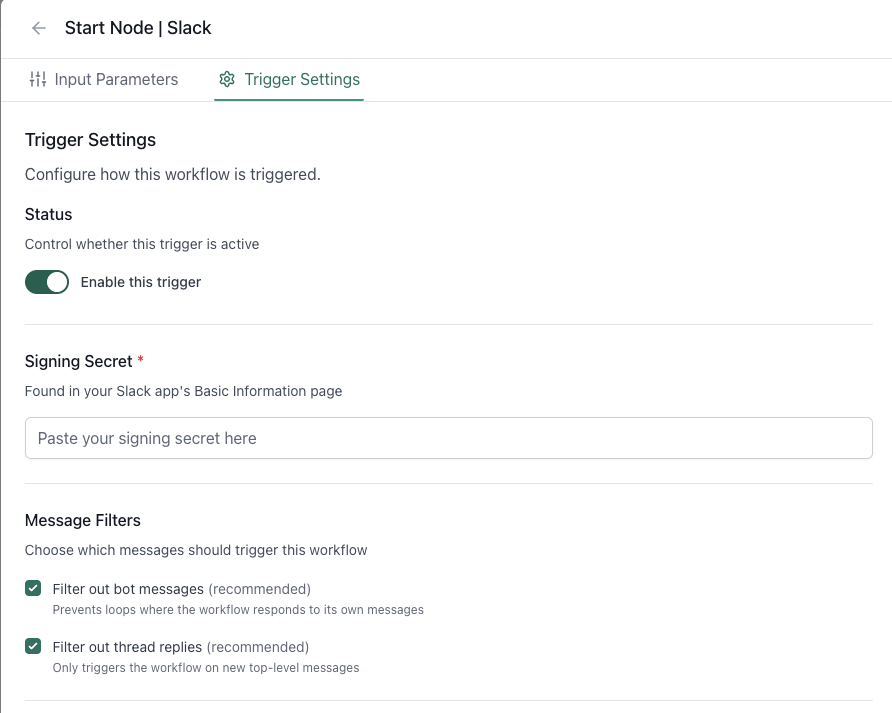
In the Trigger Settings tab, you can:
- Enable/disable the trigger - Control whether this trigger is active
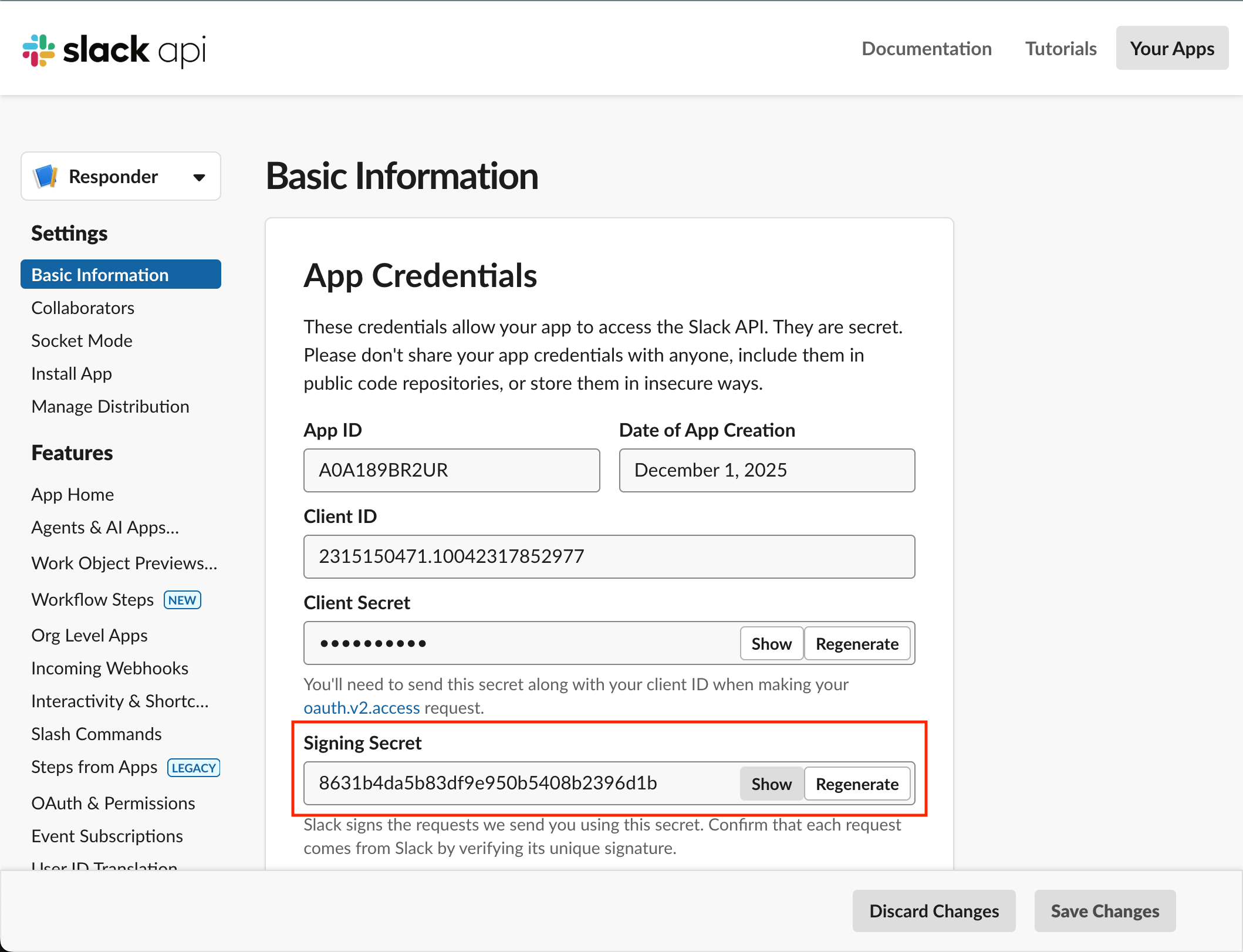
- Set the Signing Secret - Found in your Slack app's Basic Information page (required for webhook verification)
- Configure message filters:
- Filter out bot messages (recommended) - Prevents loops where the workflow responds to its own messages
- Filter out thread replies (recommended) - Only triggers the workflow on new top-level messages
The workflow input parameters are automatically configured and include:
text- The text content of the Slack messageuser_id- The Slack user ID of the message authorchannel_id- The Slack channel ID where the message was postedts- The message timestamp, used as a unique identifierthread_ts- The parent message timestamp (if this is a thread reply)channel_type- The type of channel:channel,group,im, ormpimevent_type- The Slack event type (message,app_mention, etc.)payload- The complete Slack event payload (JSON) for advanced use cases
Step 3: Create a New Slack App
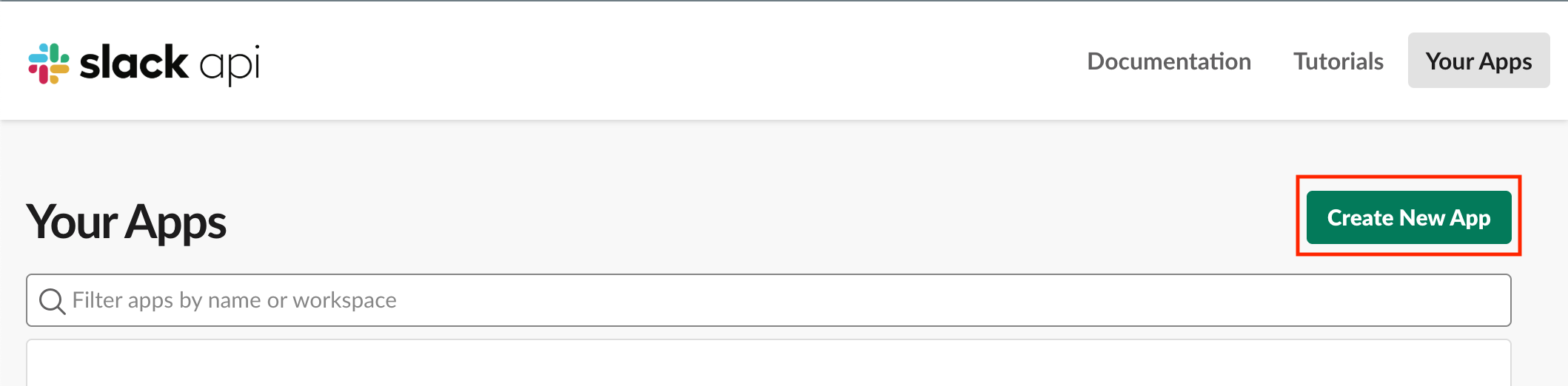
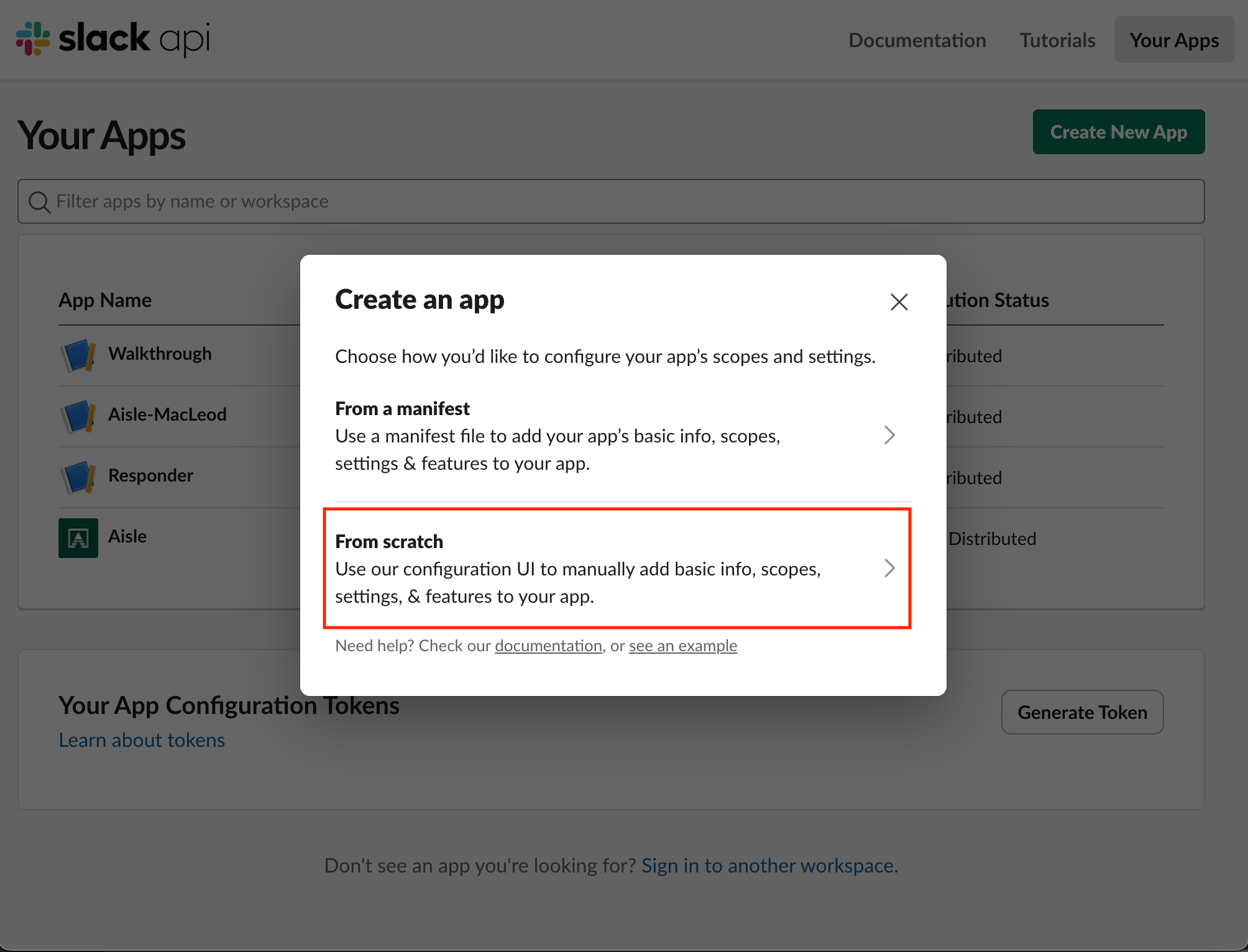
Go to api.slack.com/apps and click Create New App.
Choose From scratch.
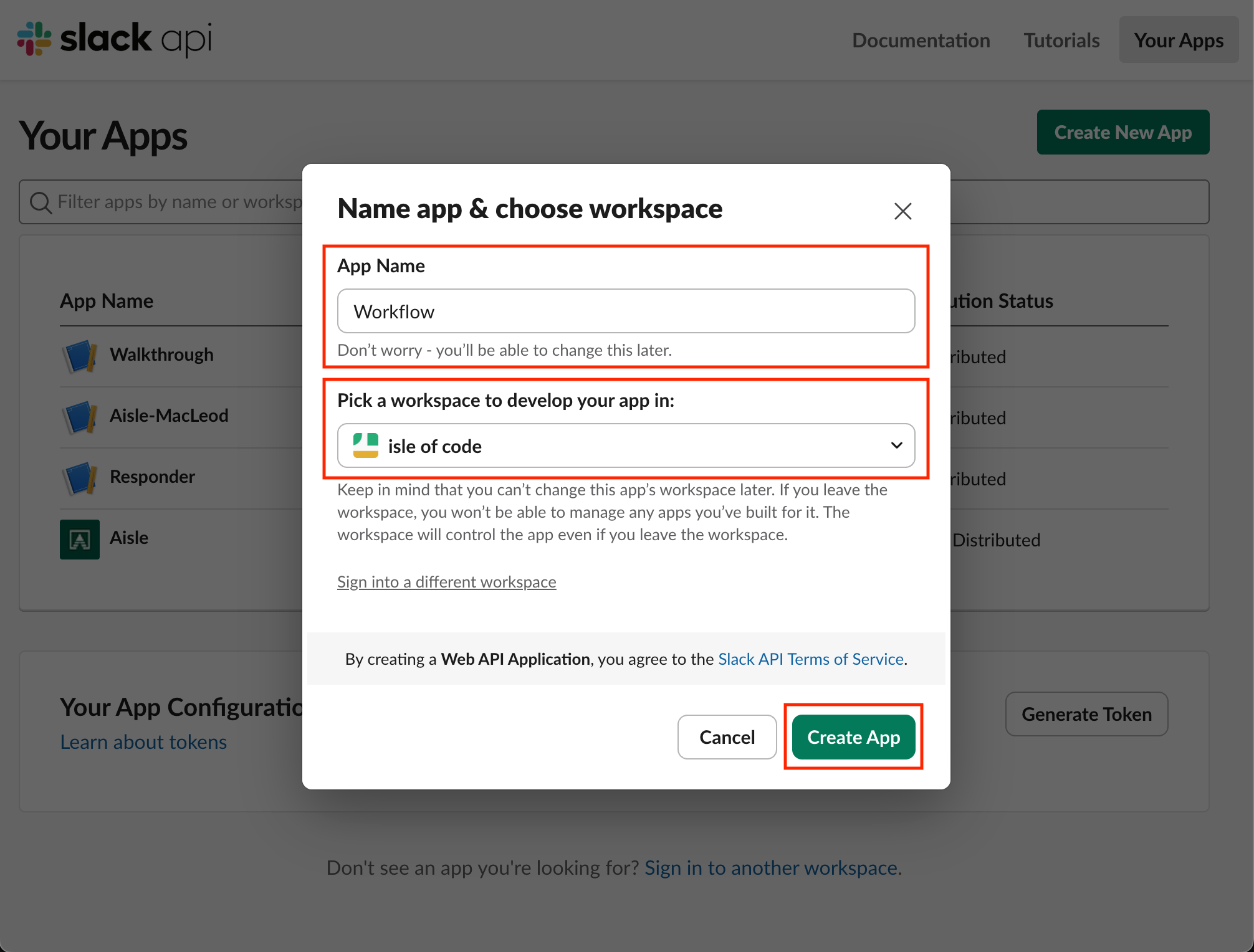
Give your app a name and select your workspace, then click Create App.
Step 4: Copy Your Signing Secret
Go to Basic Information and copy the Signing Secret. Paste this in your workflow's Slack trigger settings (Step 2).
Step 5: Enable Event Subscriptions
In your Slack app, go to Event Subscriptions:
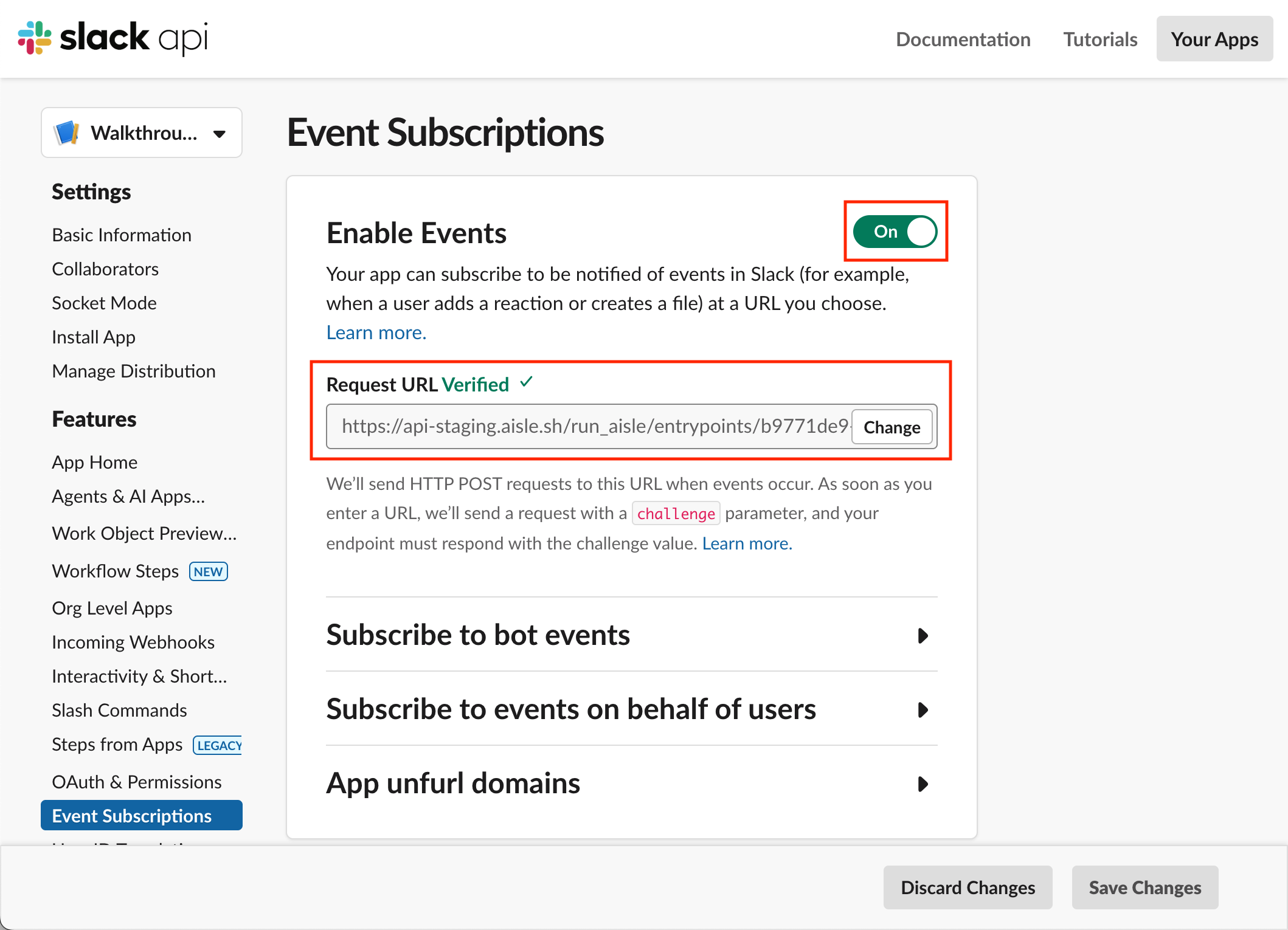
- Toggle Enable Events to ON
- Paste the Request URL (shown in your workflow's Slack trigger settings) in the Request URL field
Slack will verify the URL - you should see Verified ✓.
Step 6: Subscribe to Bot Events
Expand Subscribe to bot events and add the events you want to receive:
message.channels- Messages in public channelsmessage.groups- Messages in private channelsmessage.im- Direct messages to the botmessage.mpim- Group DMs with the botapp_mention- @mentions of the bot
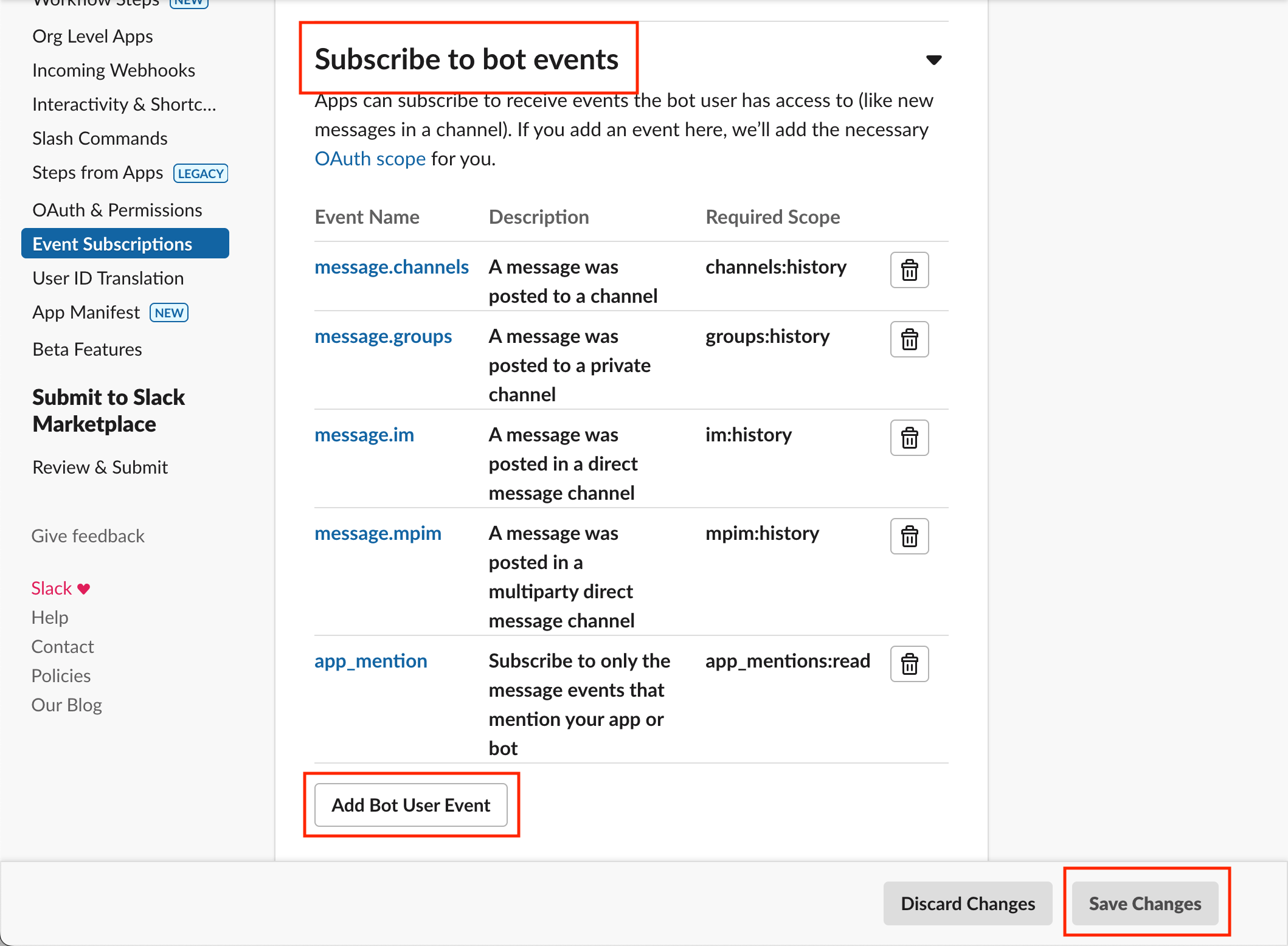
Click Save Changes in Slack when done. Your event subscription settings will not be saved otherwise.
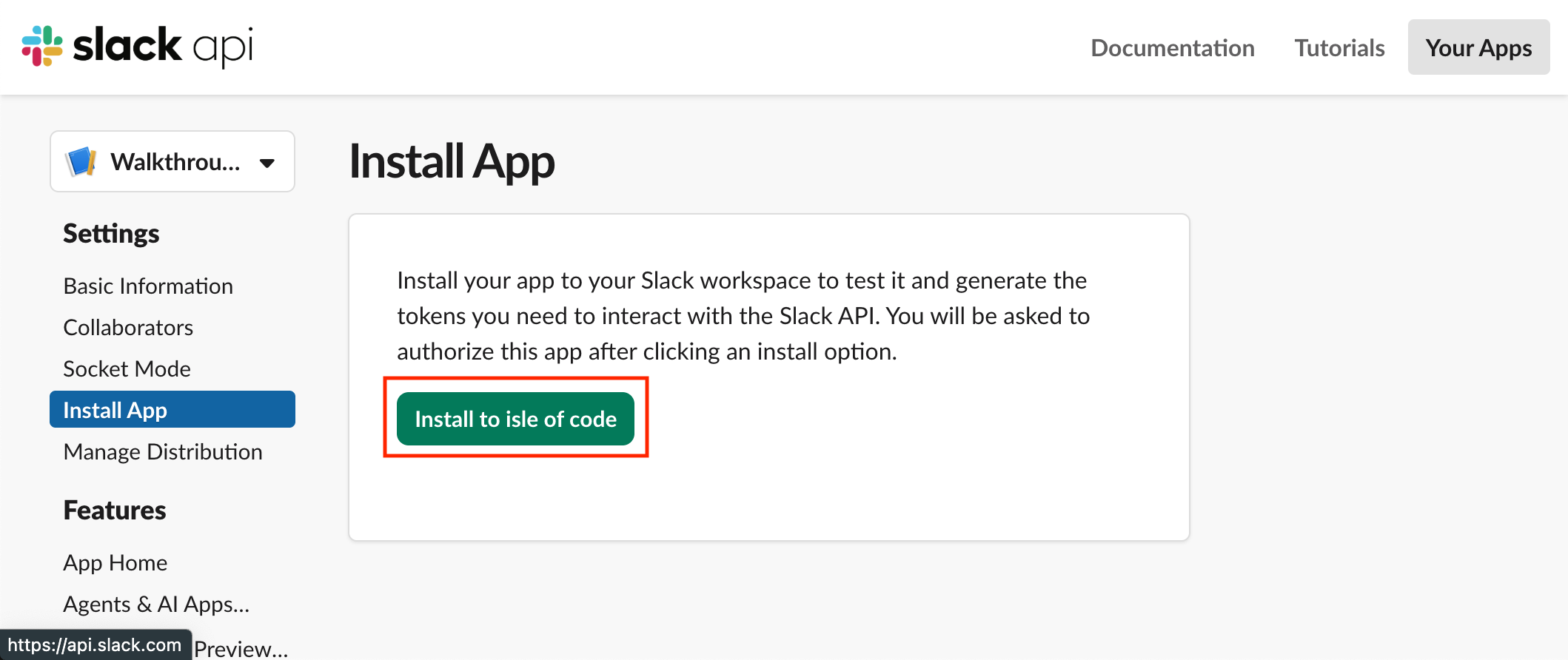
Step 7: Install App to Workspace
Go to Install App and click Install to Workspace.
If already installed, click Reinstall to apply permission changes from the events you added.
Step 8: Add Bot to Channels
In Slack, invite your bot to the channels it should monitor. Type /invite @YourBotName or use the channel integrations menu.
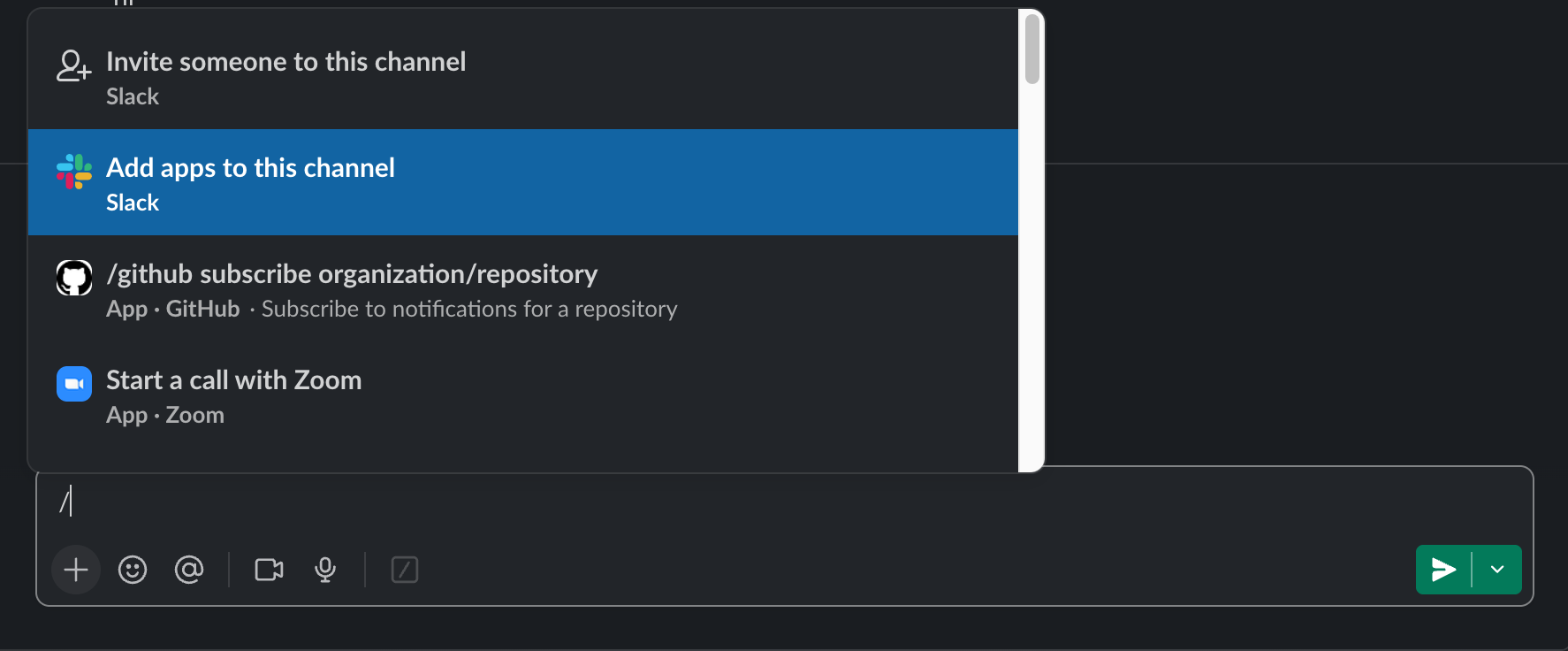
The bot only receives events from channels it's been added to.
Troubleshooting
Common Issues
Permission Denied Errors
- Ensure you have admin permissions in your Slack workspace
- Verify all required scopes are properly configured
Integration Not Working
- Check that the signing secret is correctly entered in your workflow trigger settings
- Ensure the Slack app is installed and active in your workspace
- Verify the Request URL is correctly pasted in Slack's Event Subscriptions
Bot Not Receiving Messages
- Make sure the bot has been added to the channels you want to monitor
- Verify the correct bot events are subscribed in Event Subscriptions
- Check that Save Changes was clicked after configuring events
Workflow Not Triggering
- Verify your workflow trigger is enabled
- Check that message filters aren't excluding the messages you want to process
- Ensure the workflow is published and active
Getting Help
If you encounter issues, please contact our support team or check our troubleshooting guides for additional assistance.