Using Playgrounds
How to set up comparisons, test different configurations, and use playgrounds effectively.
The Interface
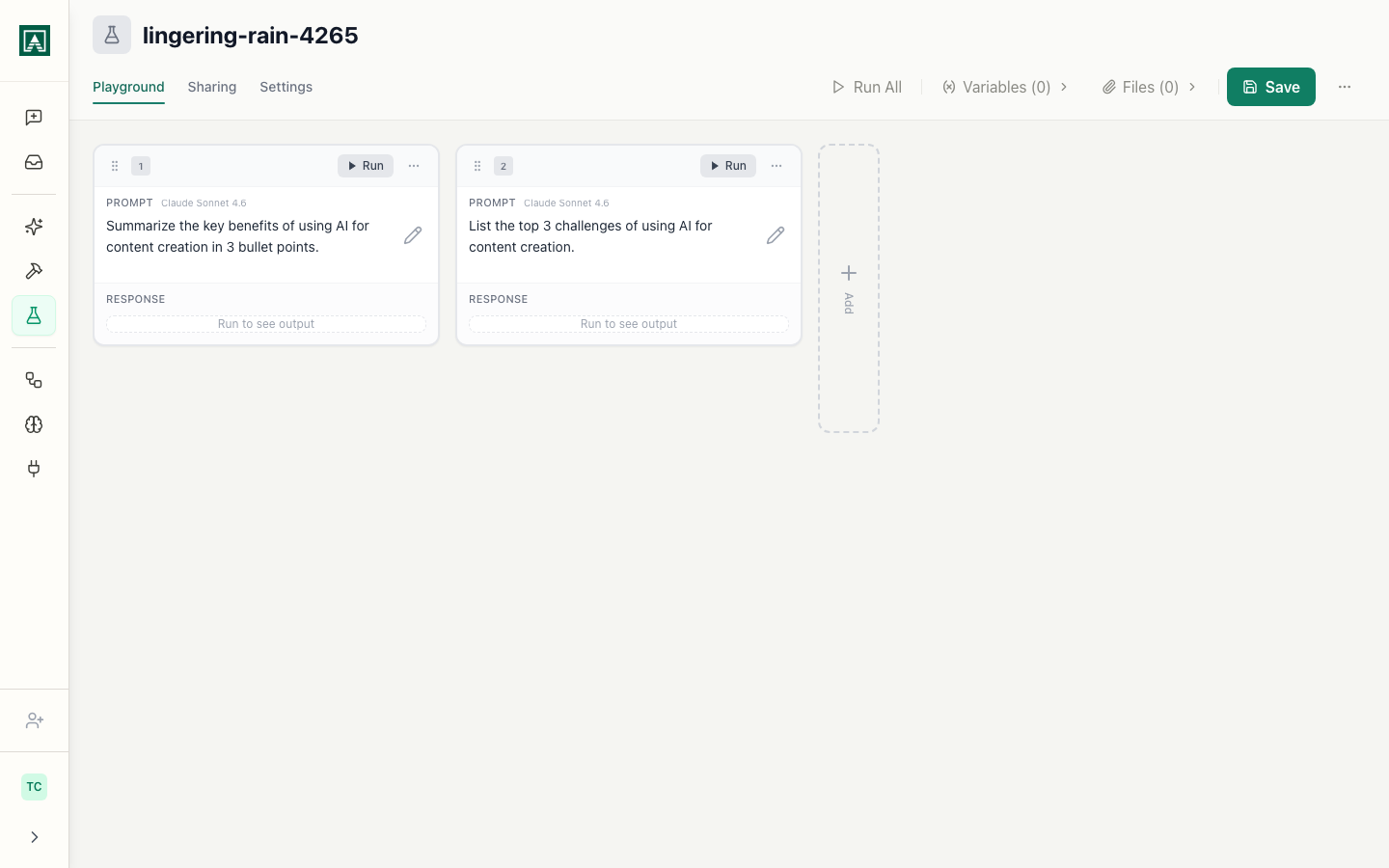
Navigate to Playgrounds from the main navigation. You'll see a column-based interface where each column can hold a different prompt configuration.

You can:
- Load existing prompts from your library
- Create new prompts from scratch
- Test the same prompt with different models
- Adjust settings like temperature or max tokens
- Run all columns with the same inputs
- Compare outputs side-by-side
Setting Up Comparisons
Testing Prompt Versions
Let's say you have a customer feedback analyzer that's currently using version 12. You want to test your proposed changes (version 13).
- Add a column
- Load your prompt from the library
- Select version 12
- Add another column
- Load the same prompt
- Select version 13
- Fill in the input variables (same customer feedback in both)
- Click run
- Compare results
Now you can see, with actual evidence, whether your changes improve the output.
Comparing Models
Same prompt, different models:
- Load your prompt into column 1
- Duplicate it into columns 2, 3, maybe 4
- Click the model selector in each column
- Choose different models (GPT-4, Claude Sonnet, etc.)
- Run them all with identical inputs
You'll see immediately which model:
- Understands your instructions best
- Produces the output format you need
- Handles edge cases better
- Works well enough at lower cost
Testing Settings
Click the gear icon in any column to adjust configuration.
Temperature controls randomness:
- Lower (0.0-0.3): Consistent, predictable outputs. Good for data extraction, classification.
- Higher (0.7-1.0): Creative, varied outputs. Good for brainstorming, writing.
Max Tokens limits response length. Set this to control output length and cost.
Test different settings in different columns to find what works best for your use case.
Versions
When you load a prompt into playground, you choose which version to use.
Every time you save changes to a prompt in Aisle, it creates a new version. If you edited your "Customer Feedback Analyzer" three times this week, you have at least three versions.
Load version 12 (current production) alongside version 13 (latest changes) to see if your changes actually improve outputs. Or go back to version 8 when things were working well and compare it to version 12 to see what changed.
The power move: Load the same prompt, different versions, in different columns. Run them both. Now you're not guessing whether your edits improved things—you're looking at the actual difference.
Common Scenarios
Testing iterations against a baseline
You've been improving a prompt. You've made 5 changes this week. Is it actually better now?
Load the current production version in column 1. Load your latest changes in column 2. Run both with the same inputs. Look at the outputs side-by-side.
If the new version is clearly better, deploy it. If it's worse, you know immediately and can either revert or keep iterating. If it's about the same, maybe the changes don't matter.
Choosing between models
You're building a new prompt. You know what you want it to do, but you don't know which model to use.
Load your prompt into 3-4 columns. Switch each one to a different model. Run them all.
Sometimes a smaller, faster, cheaper model works just as well as the flagship model. Sometimes you need the advanced reasoning of the best model. You won't know until you test.
Getting team approval
You want to change a critical business prompt. Your manager needs to approve it.
Set up a playground with the current version and proposed new version. Run both with realistic inputs. Save it. Share the link.
Now your manager reviews actual outputs, not your description of what changed. They can see exactly why the new version is better (or isn't). The approval conversation is concrete instead of abstract.
Diagnosing regressions
Something went wrong. The prompt that was working great last week is producing garbage now.
Load the current version and the stable version from last week in playground. Run them both. Document exactly what broke.
This testing record helps prevent the same regression in the future. You can see what changed and why it matters.
Proposing different approaches
You need to build something new. You have three completely different strategies for how the prompt should work.
Build all three in playground columns. Run them all. Share with your team. The saved results make the decision meeting productive because everyone is looking at real outputs, not hypothetical descriptions.
Testing Tips
Use actual examples of what the prompt will process in production, not toy examples. Don't judge based on one input—try several different examples to see consistency.
Name playgrounds descriptively ("Customer Feedback v2 vs v3 Testing" not "Playground 5"). Get feedback early. Don't wait until you've decided.
Change one thing at a time. If you change model AND temperature AND rewrite instructions all at once, you won't know which change caused what effect.